
Build & deploy AI chatbots for your business あなたのビジネスに AI チャットボットを導入
A step-by-step guide for Japanese business teams to launch a branded AI chatbot — from sign-up to embedding it on your website. 日本企業向けの導入ガイド。アカウント作成からウェブサイトへの埋め込みまで、自社ブランドの AI チャットボットを最短で公開できます。
1Welcome to BizChat AIBizChat AI へようこそ
BizChat AI is an enterprise-grade chatbot platform. Train it on your own documents, embed it on your site, and review every conversation. BizChat AI は企業向けチャットボットプラットフォームです。自社の資料で学習させ、サイトに埋め込み、すべての会話を確認できます。
2Create Your Accountアカウントの作成
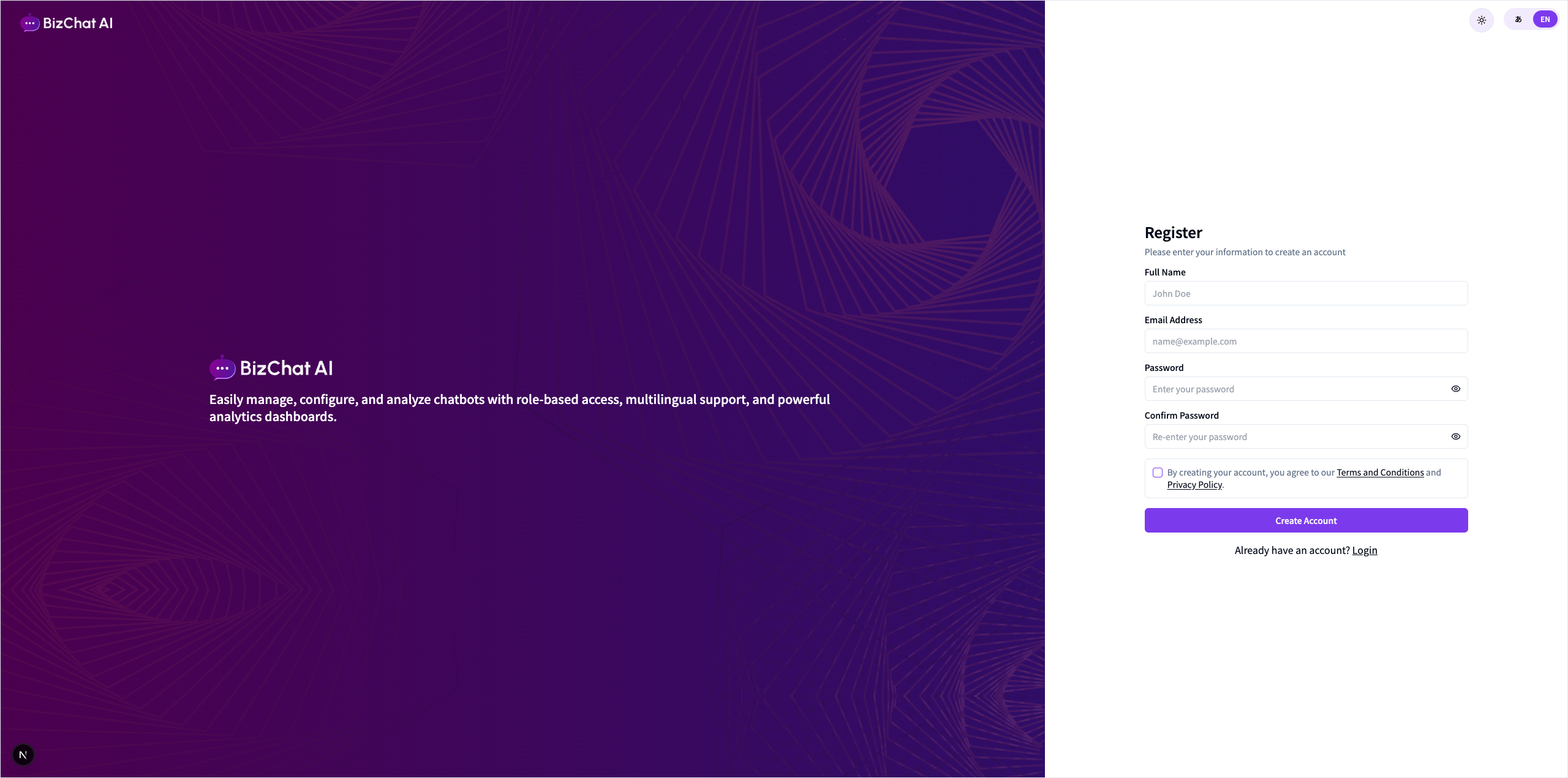
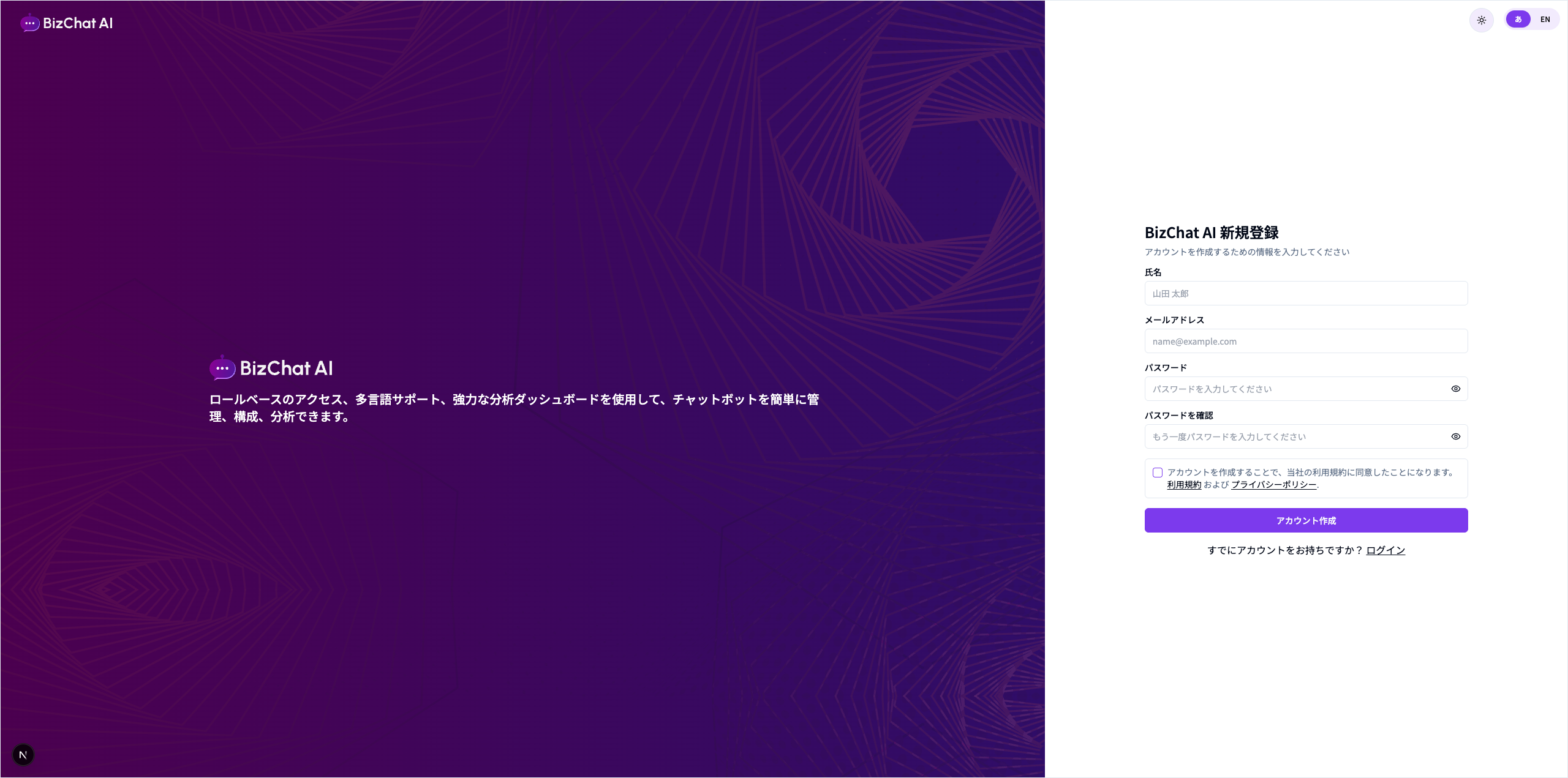
Visit the registration page and fill in your details to start a free trial. 登録ページから必要事項を入力し、無料トライアルを開始します。
- Open
https://app.bizchat-ai.com/register.https://app.bizchat-ai.com/registerを開きます。 - Enter Full Name, Email, and a strong Password. 氏名、メールアドレス、強固な パスワード を入力します。
- Agree to the Terms and Privacy Policy, then click Create Account. 利用規約とプライバシーポリシーに同意し、アカウント作成 をクリックします。
- Verify your email through the OTP code sent to your inbox. 受信メールに届く OTP コードでメール認証を行います。
3Loginログイン
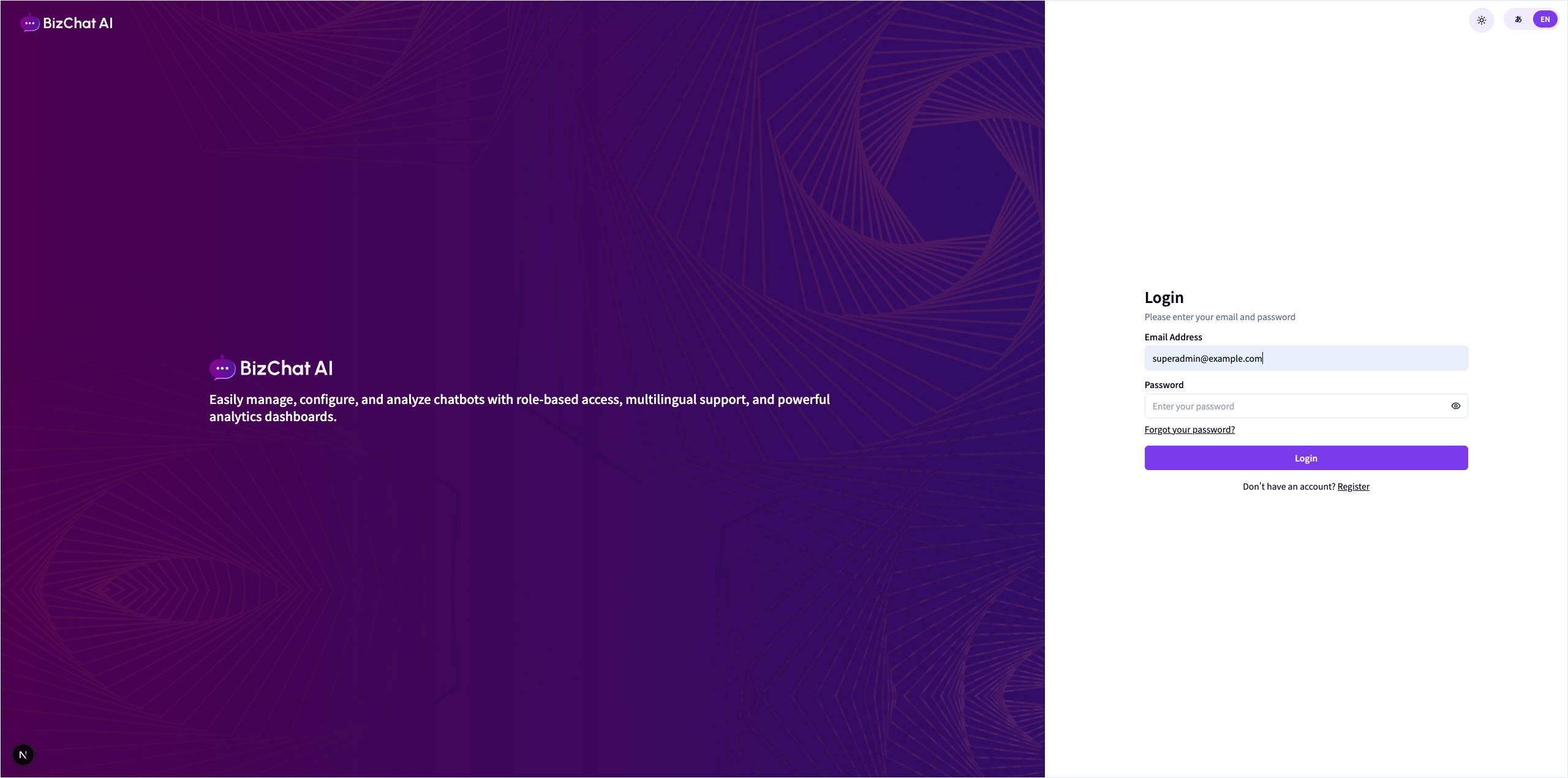
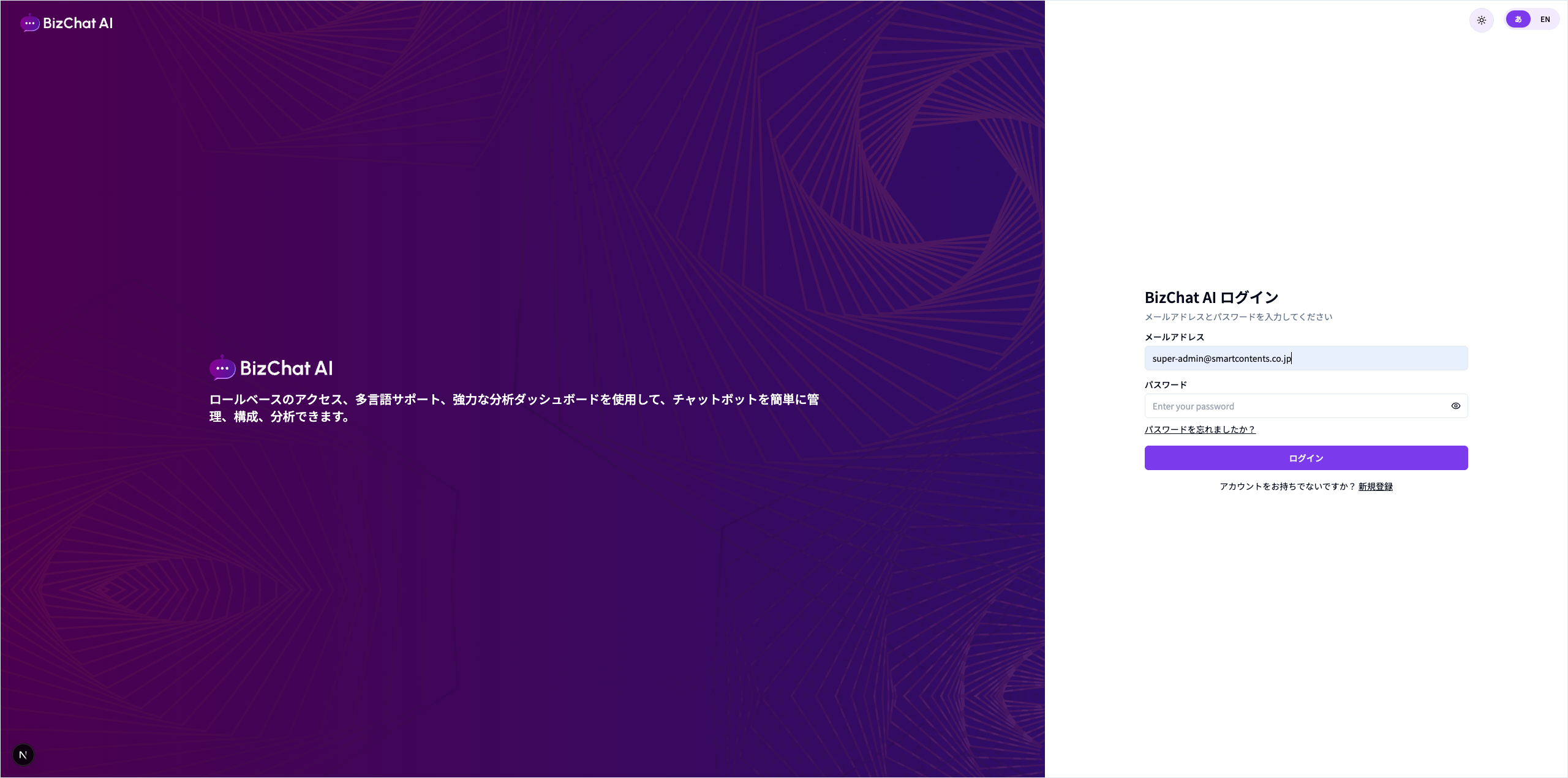
Once your account is verified, log in to access the dashboard. メール認証が完了したら、ログインしてダッシュボードへアクセスします。
- Go to the login page and enter your email and password. ログイン画面でメールアドレスとパスワードを入力します。
- Click Login. You'll land on the dashboard. ログイン をクリックすると、ダッシュボードに遷移します。
4Forgot Passwordパスワードをお忘れの場合
Reset your password via a secure email link. メールに送られる安全なリンクからパスワードを再設定できます。
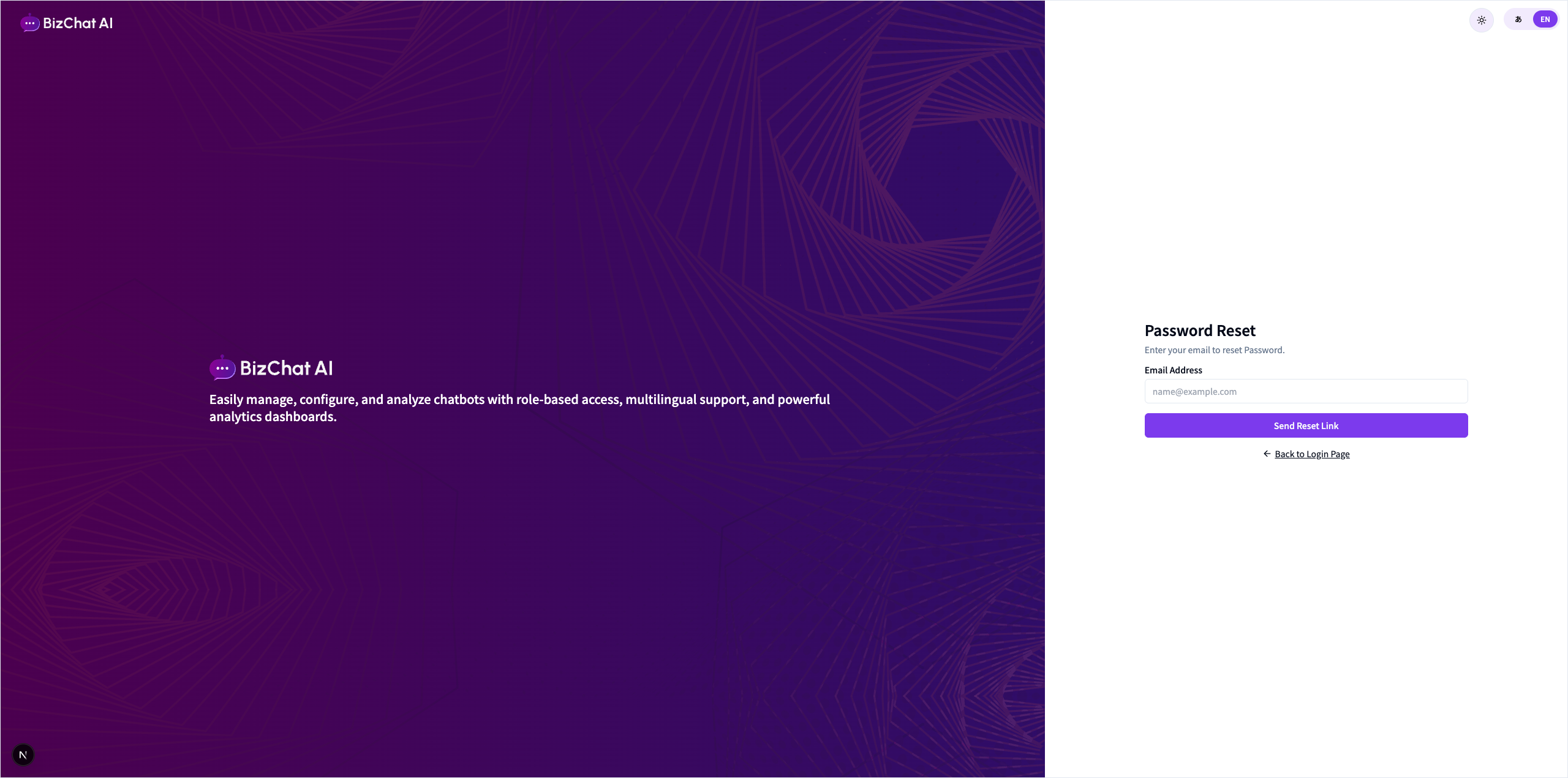
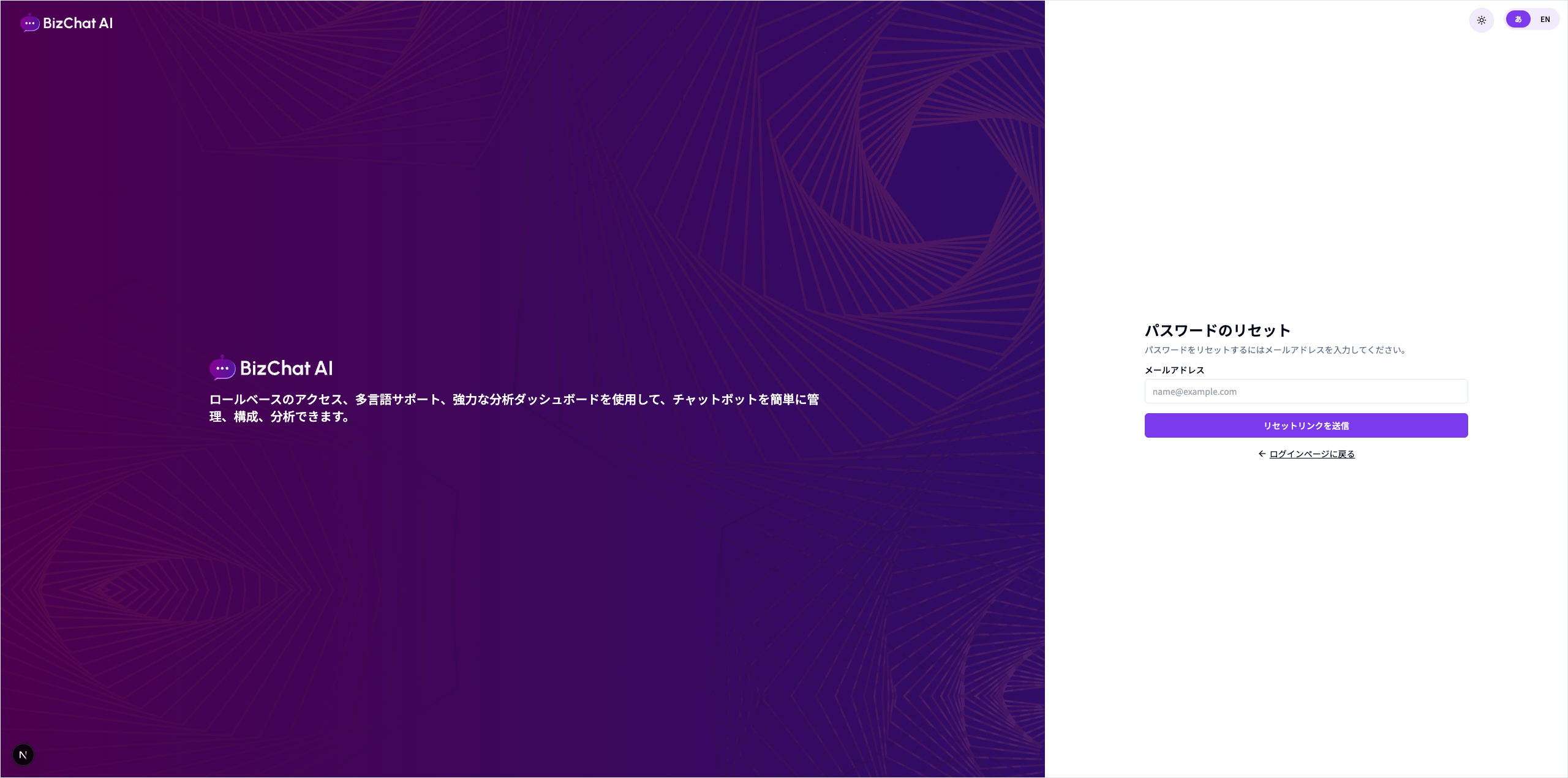
- From the login page, click Forgot your password? ログイン画面で パスワードを忘れましたか? をクリック。
- Enter your email and click Send Reset Link. メールアドレスを入力し リセットリンクを送信 をクリック。
- Open the email and follow the link to set a new password. 受信メールのリンクから新しいパスワードを設定します。
5Dashboard Overviewダッシュボード概要
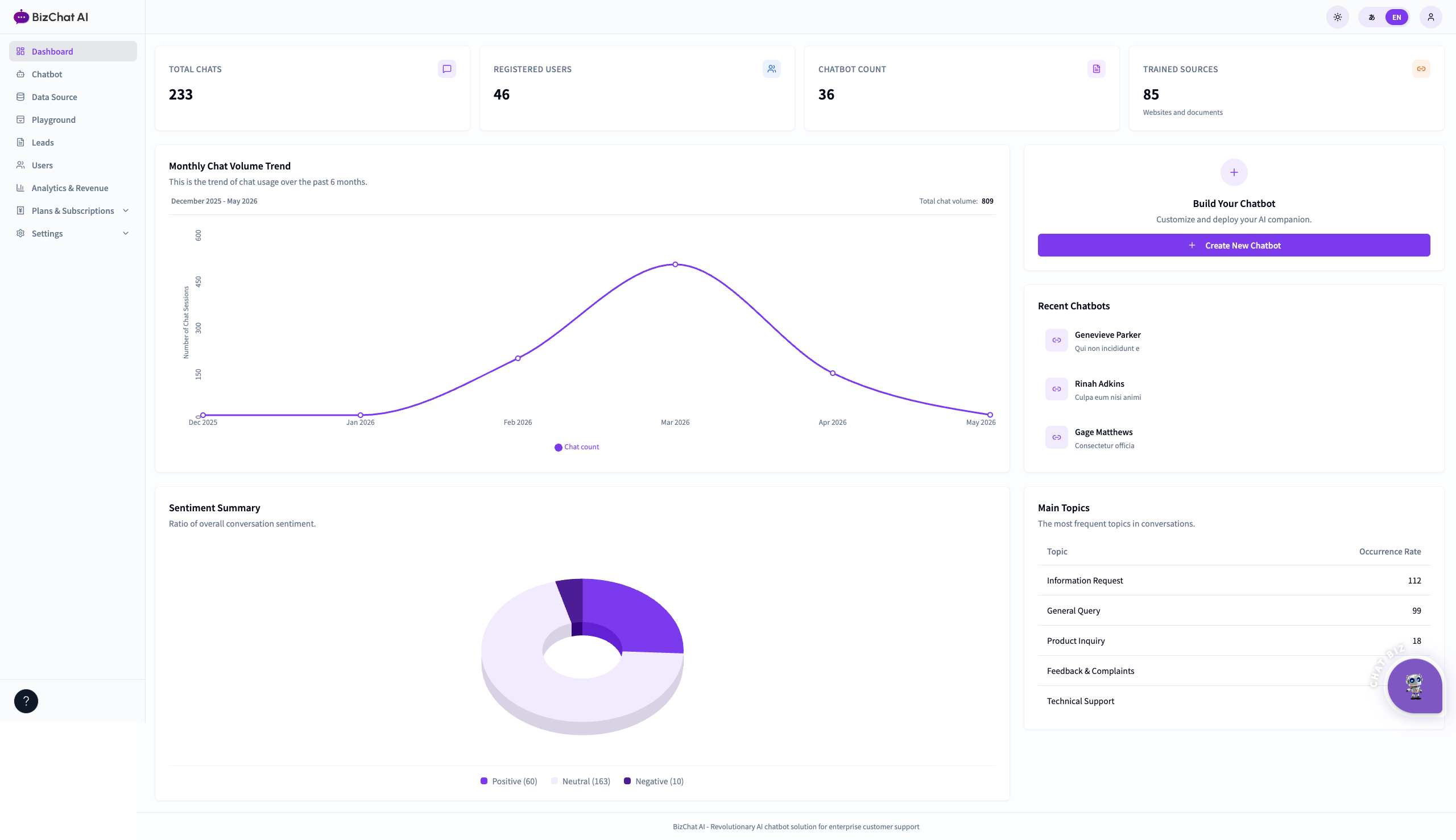
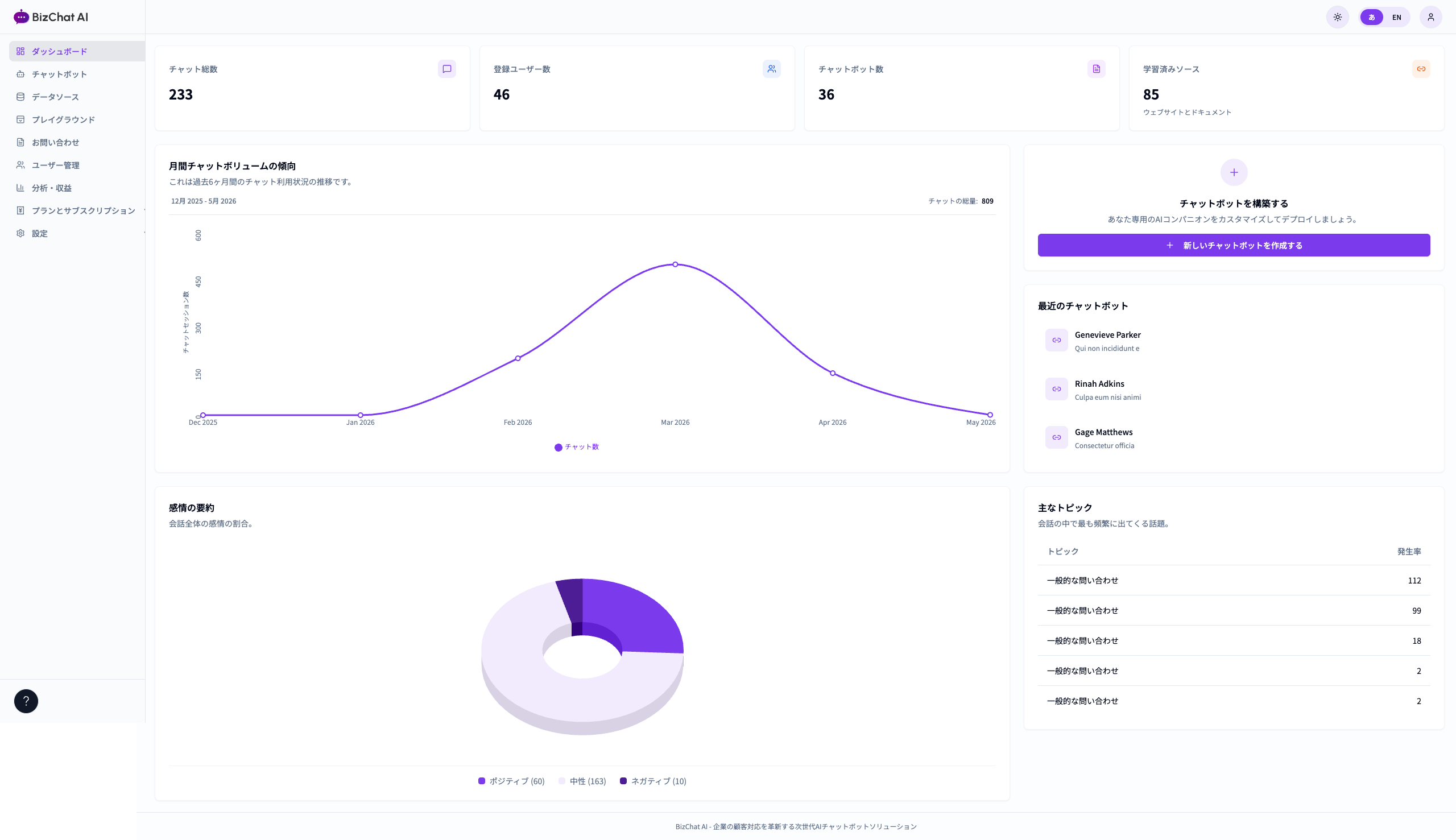
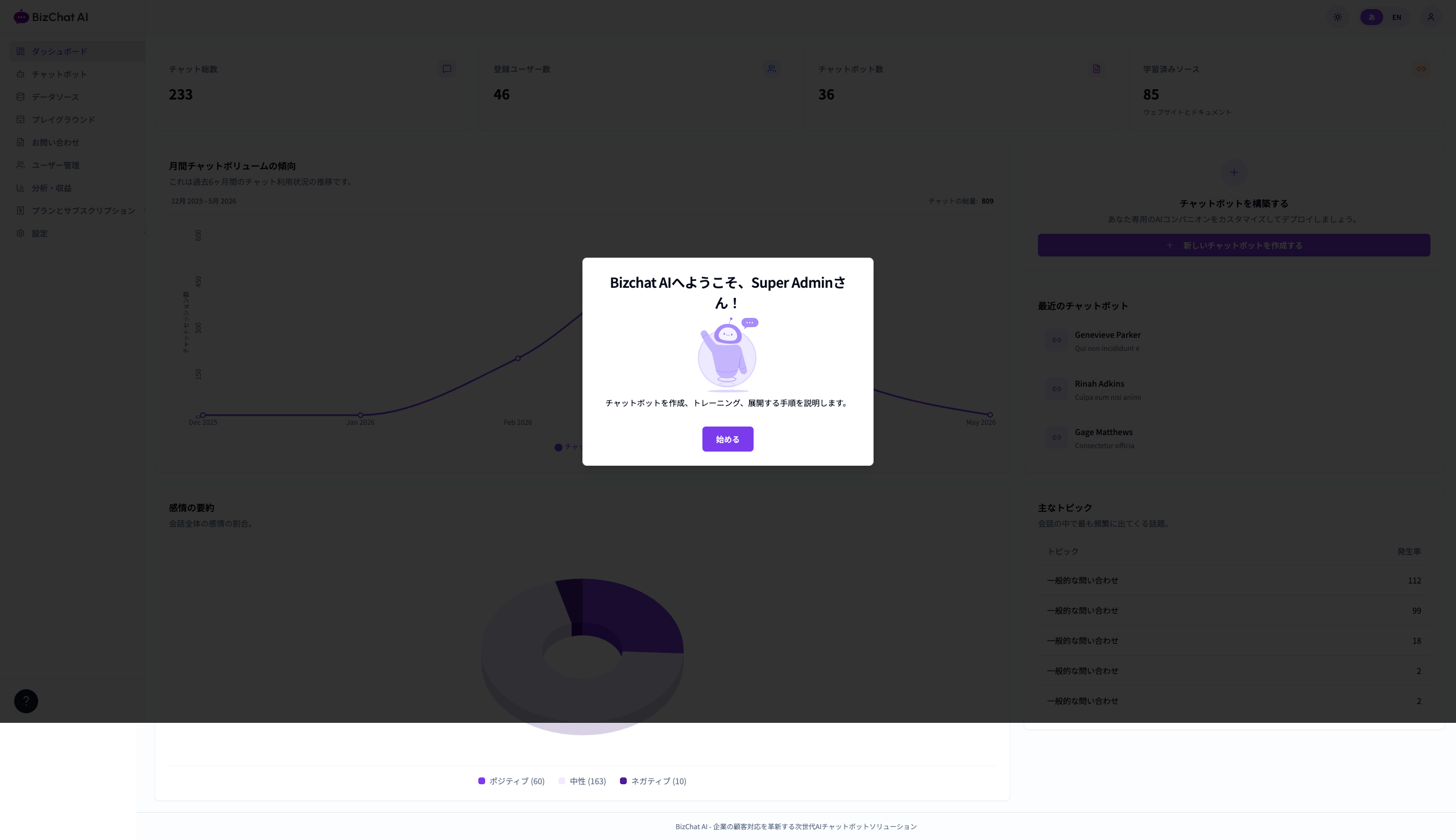
The home dashboard shows key metrics: total chats, registered users, chatbot count, trained sources, monthly volume, and sentiment summary. ホームダッシュボードでは主要 KPI(総チャット数・登録ユーザー数・ボット数・学習ソース数・月次推移・感情分析)を確認できます。
Sidebar navigationサイドバー
- Dashboard / ダッシュボード — KPI overviewKPI 概要
- Chatbot / チャットボット — List & configure botsボットの一覧・設定
- Data Source / データソース — Documents & URLs資料・URL の管理
- Playground / プレイグラウンド — Test chatsテスト会話
- Leads / お問い合わせ — Captured contacts顧客リード
- Users / ユーザー管理 — Team & rolesチームと権限
- Analytics / 分析・収益 — Charts & revenue分析と収益
- Plans & Subscriptions / プランとサブスクリプション
- Settings / 設定 — Profile, embed, AI, domains, webhooksプロフィール・埋め込み・AI・ドメイン・Webhook
6Chatbotsチャットボット一覧
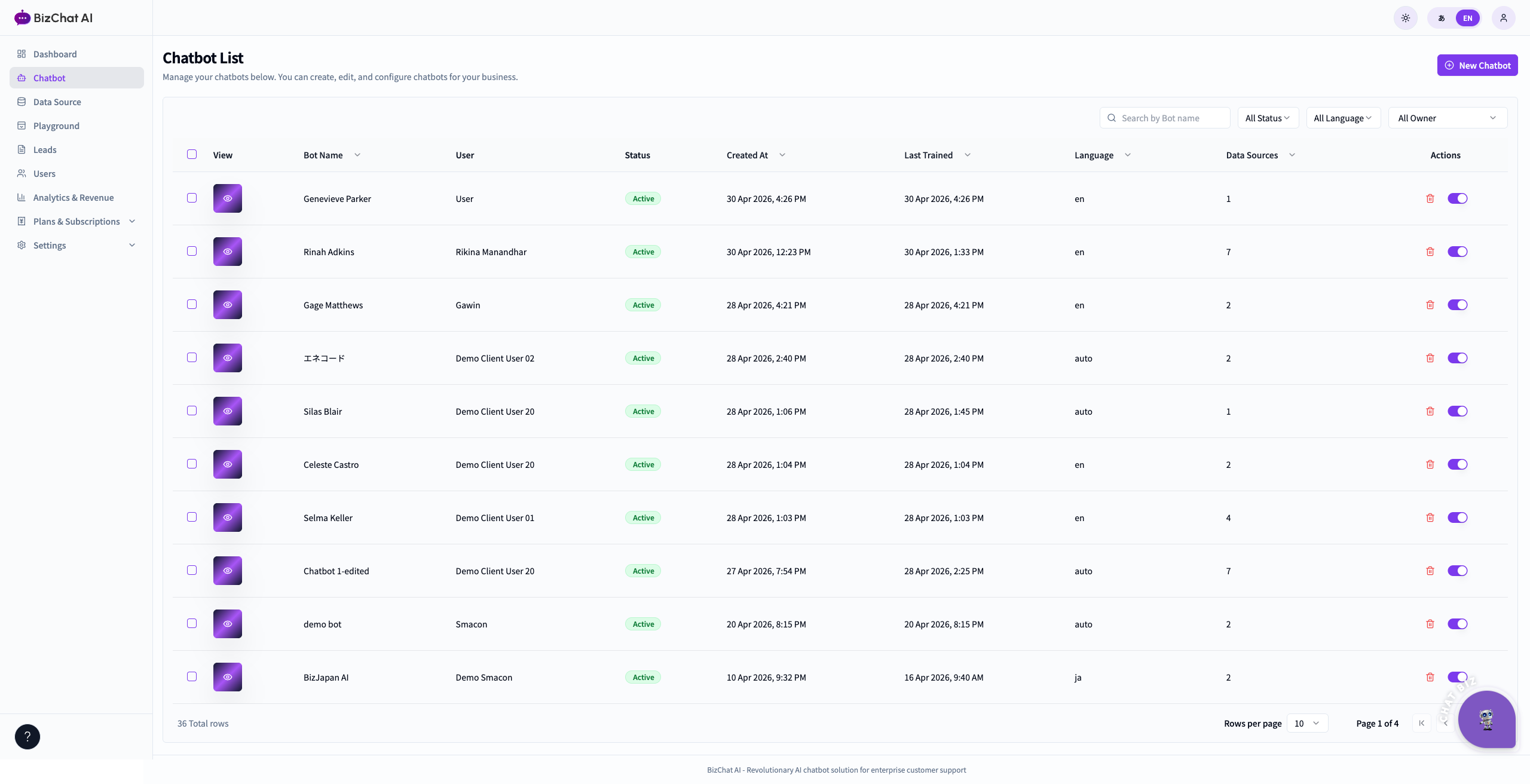
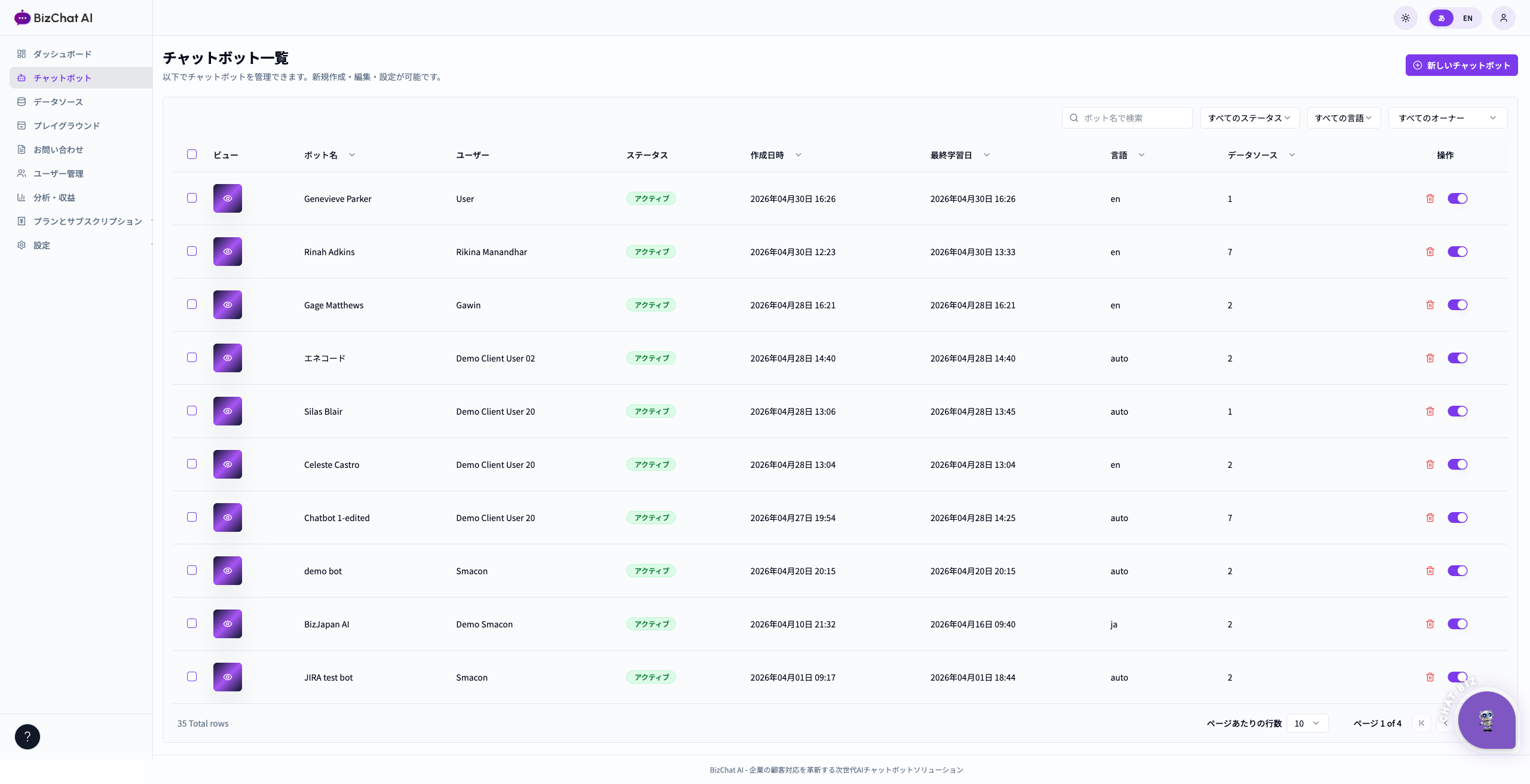
List, search, and manage all your chatbots from one place. すべてのチャットボットを一覧・検索・管理できます。
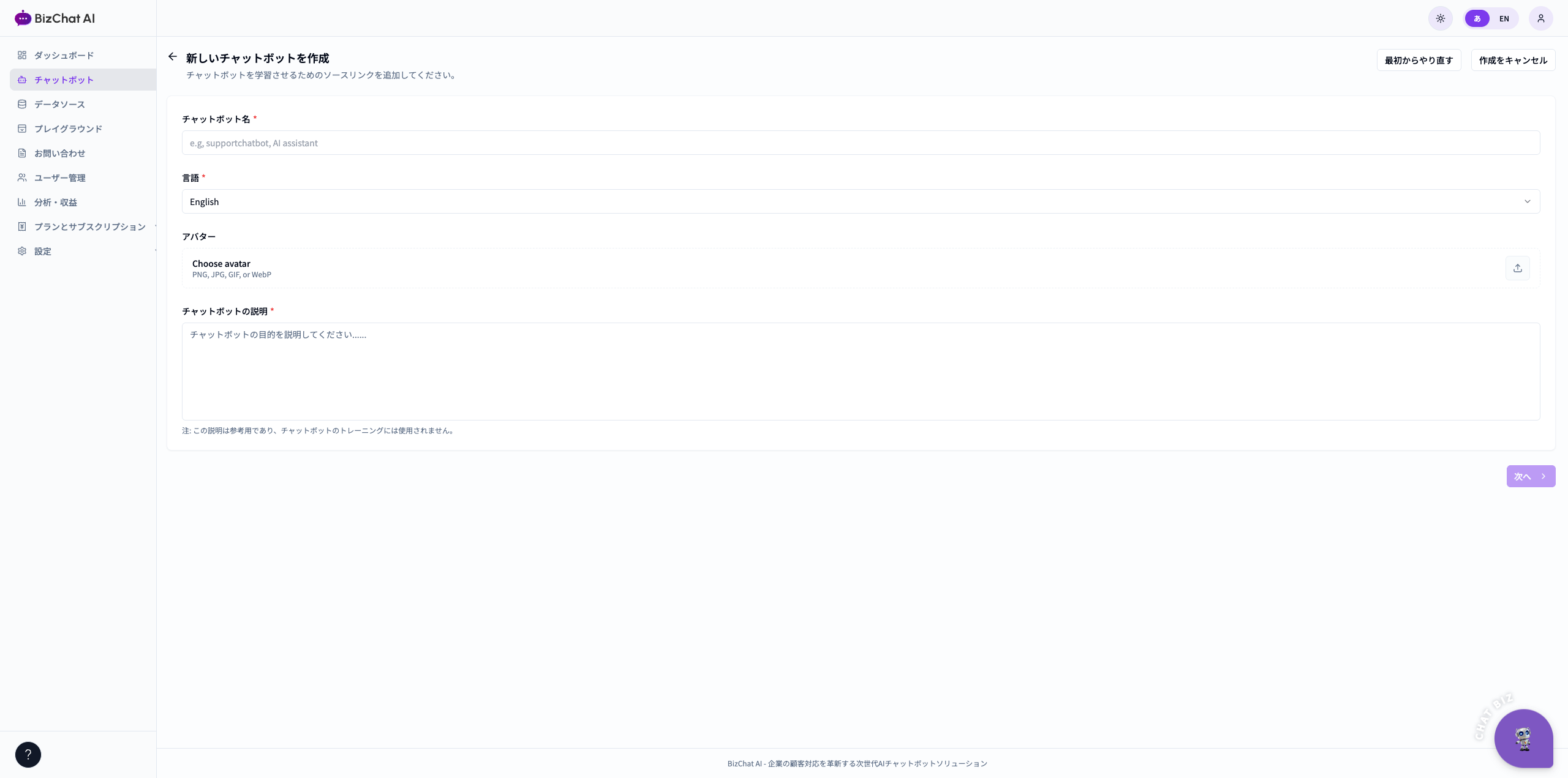
7Create a Chatbotチャットボットを作成
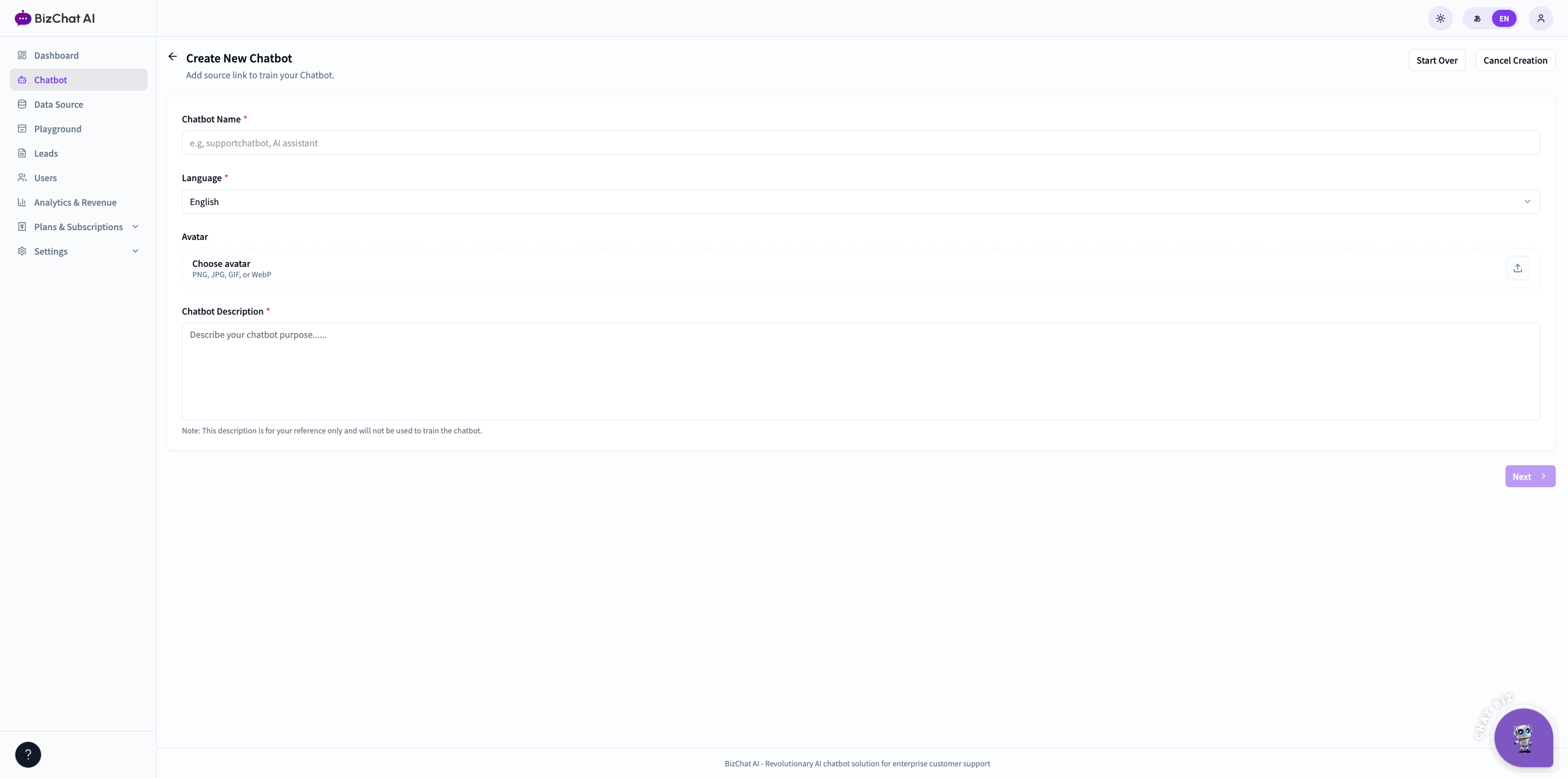
Go from zero to a working chatbot in minutes. 数分でチャットボットを公開できます。
- Click Create New Chatbot from Dashboard or Chatbot list. 新しいチャットボットを作成する をクリック。
- Name the bot, set its persona, and choose the AI model. 名前・ペルソナ・AI モデルを設定します。
- Save. The bot appears in your list, ready for data & testing. 保存すると一覧に追加され、学習・テストが可能になります。
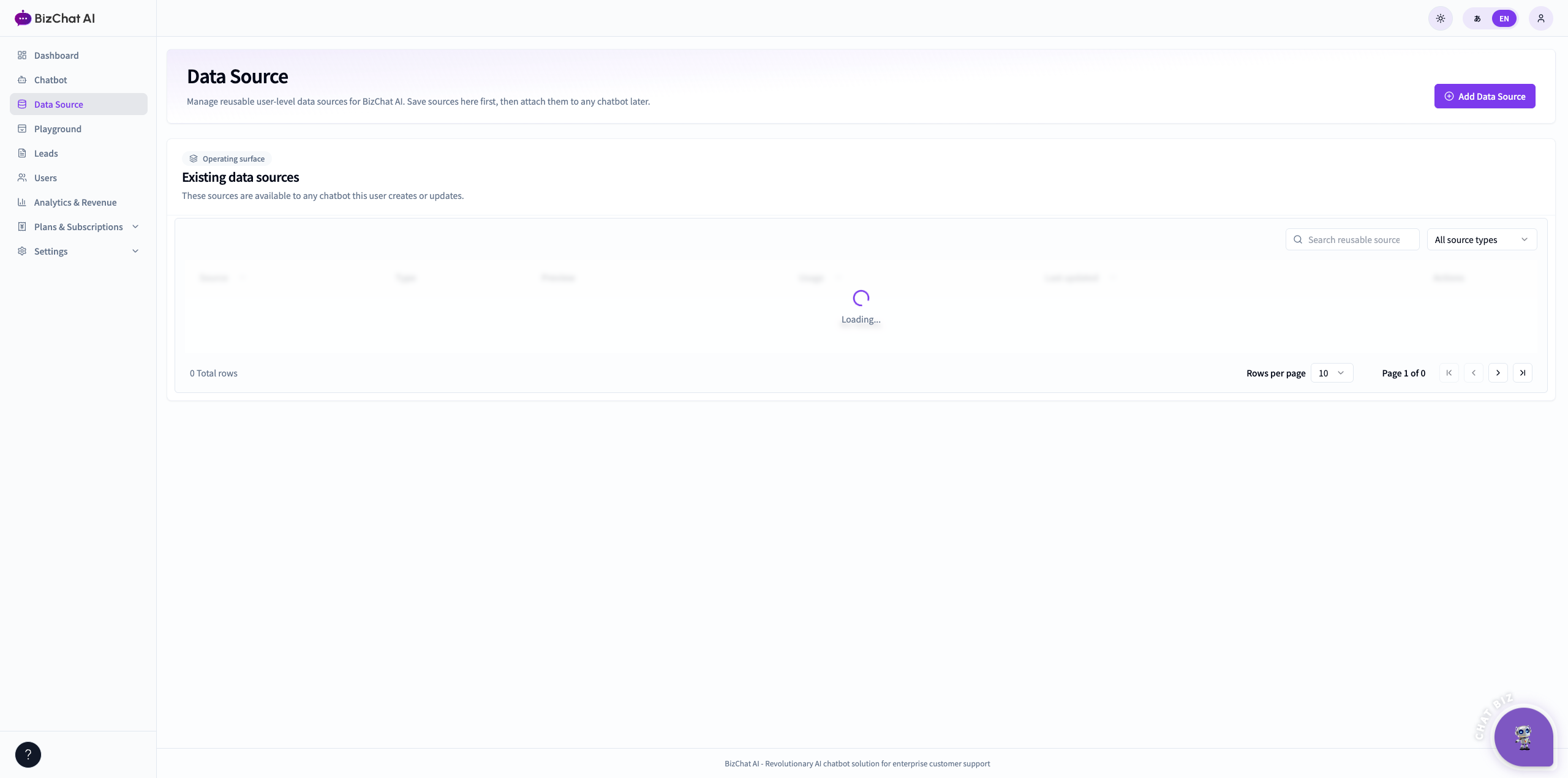
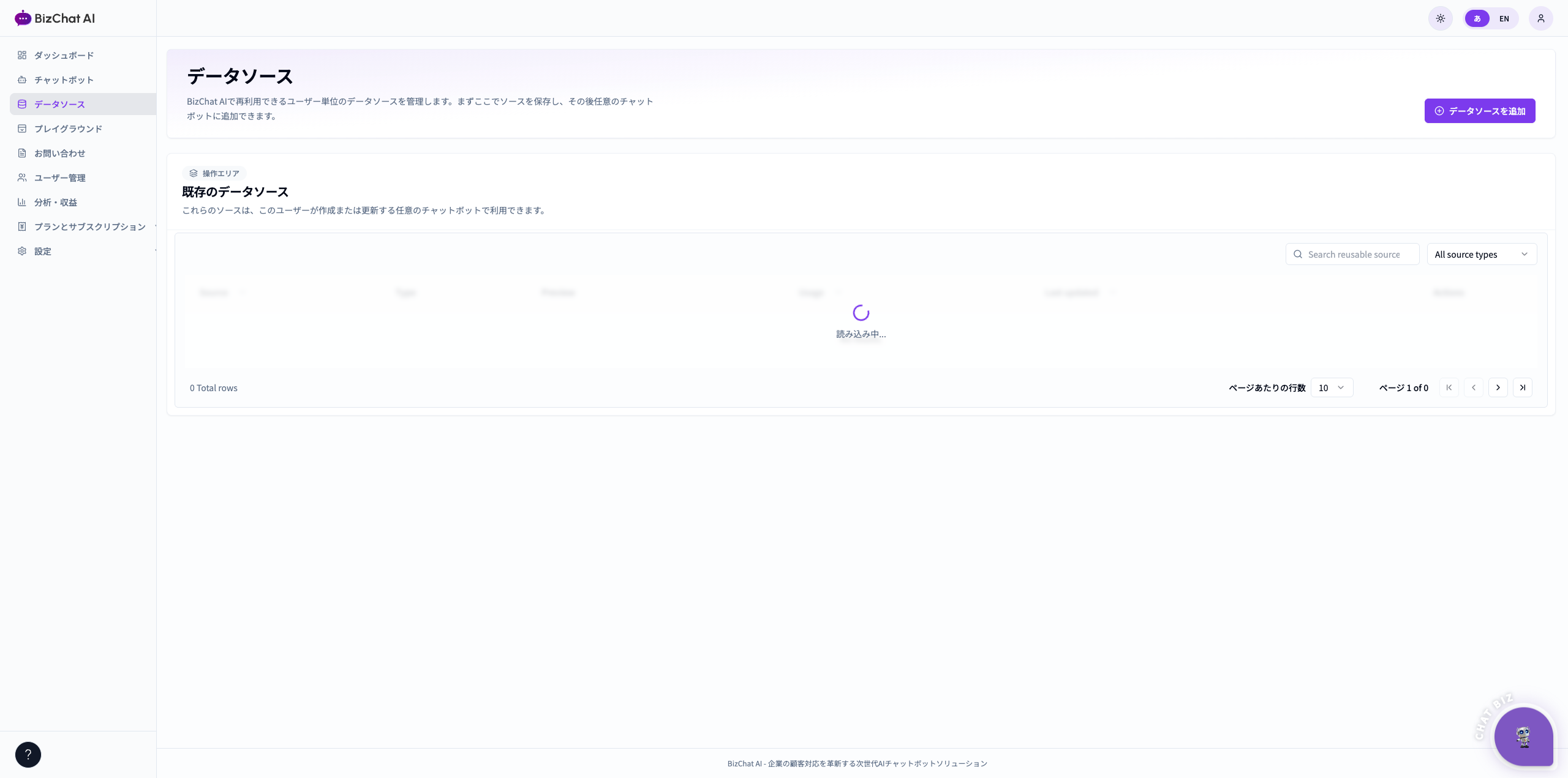
8Data Sources (Train Your Bot)データソース(学習)
Upload PDFs, paste website URLs, or add Q&A pairs to teach your chatbot. PDF・ウェブサイト URL・FAQ を登録してボットに学習させます。
- Files / ファイル — PDF, DOCX, TXT
- Websites / ウェブサイト — crawl public pages公開ページをクロール
- FAQ / よくある質問 — Q&A pairs質問と回答のペア
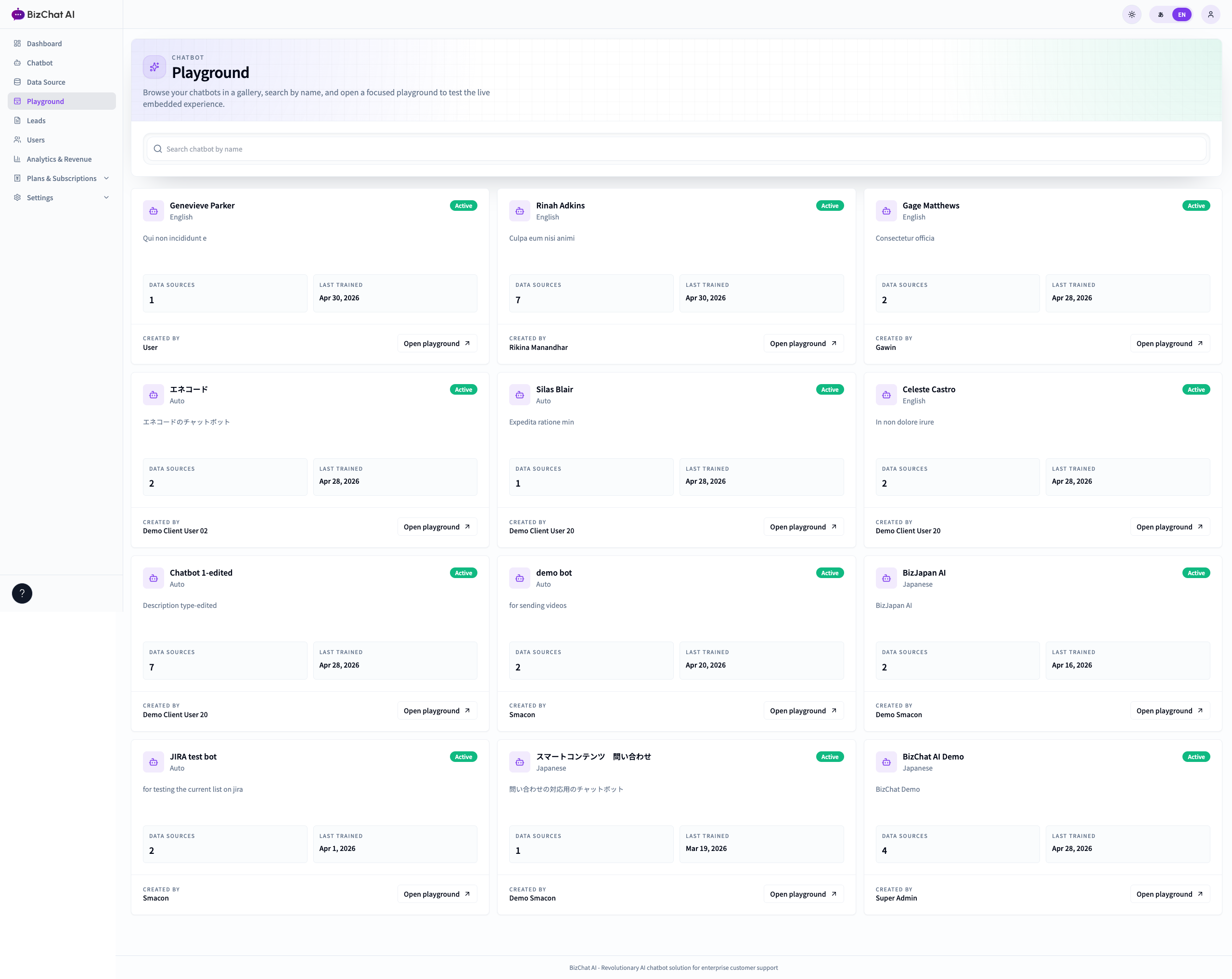
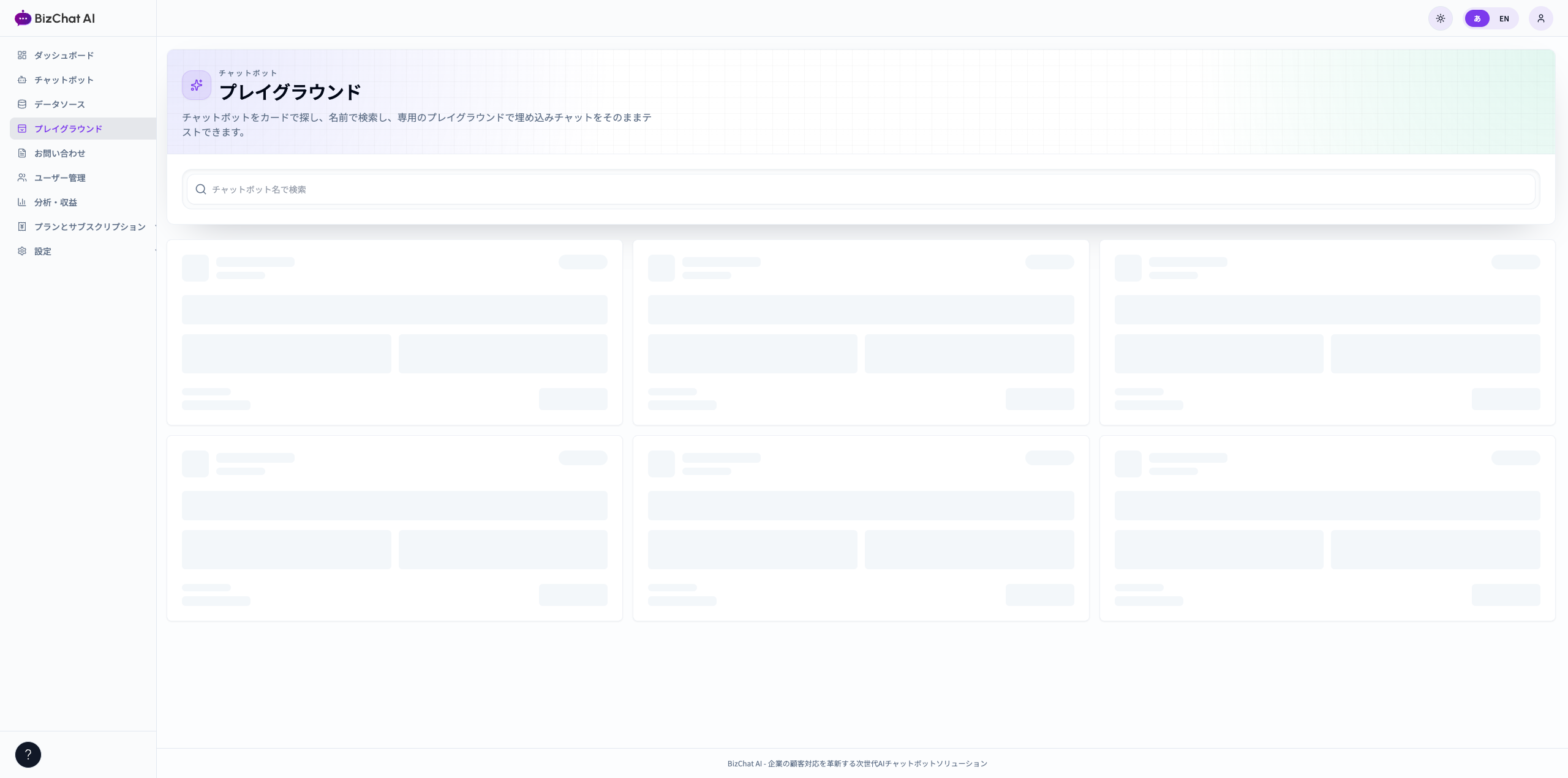
9Playground (Test Before Launch)プレイグラウンド(公開前テスト)
Chat with your bot privately to verify answers before deploying. 公開前にボットと会話し、回答品質を確認します。
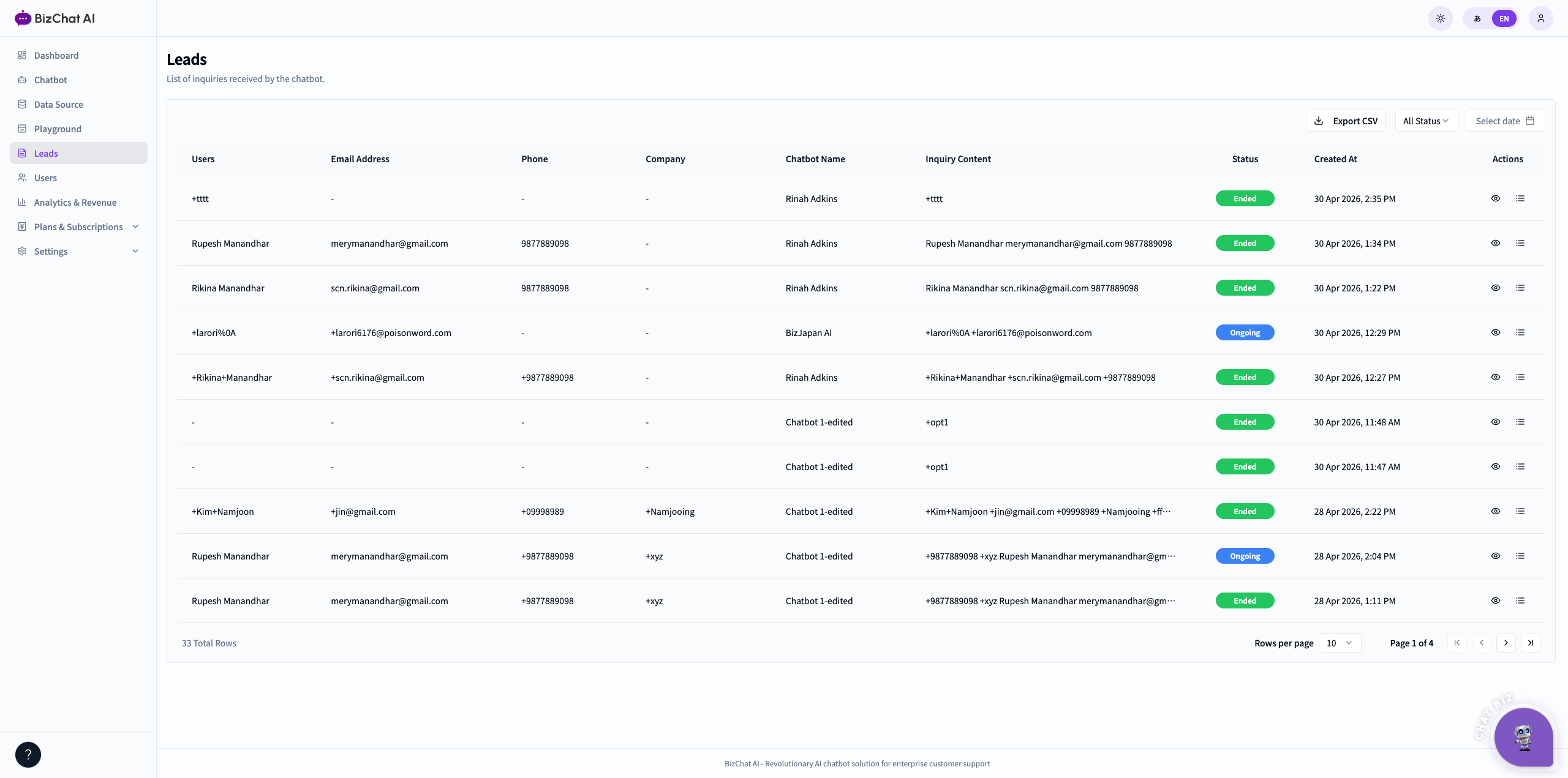
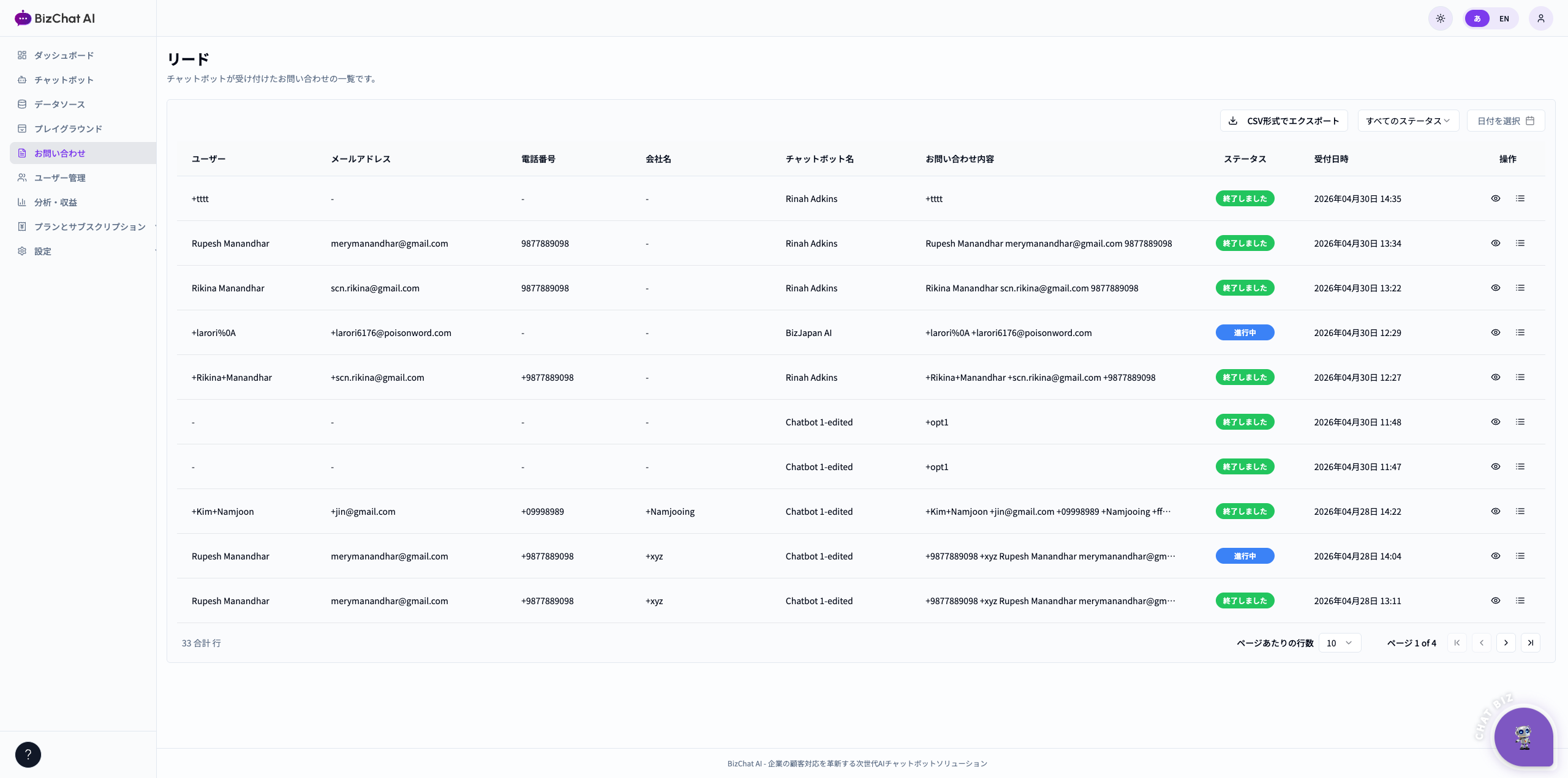
10Leads (Captured Inquiries)お問い合わせ(リード)
Every contact form filled inside the chat is saved here. Export to CSV. チャット内のフォームから取得した連絡先を保存します。CSV 出力可能。
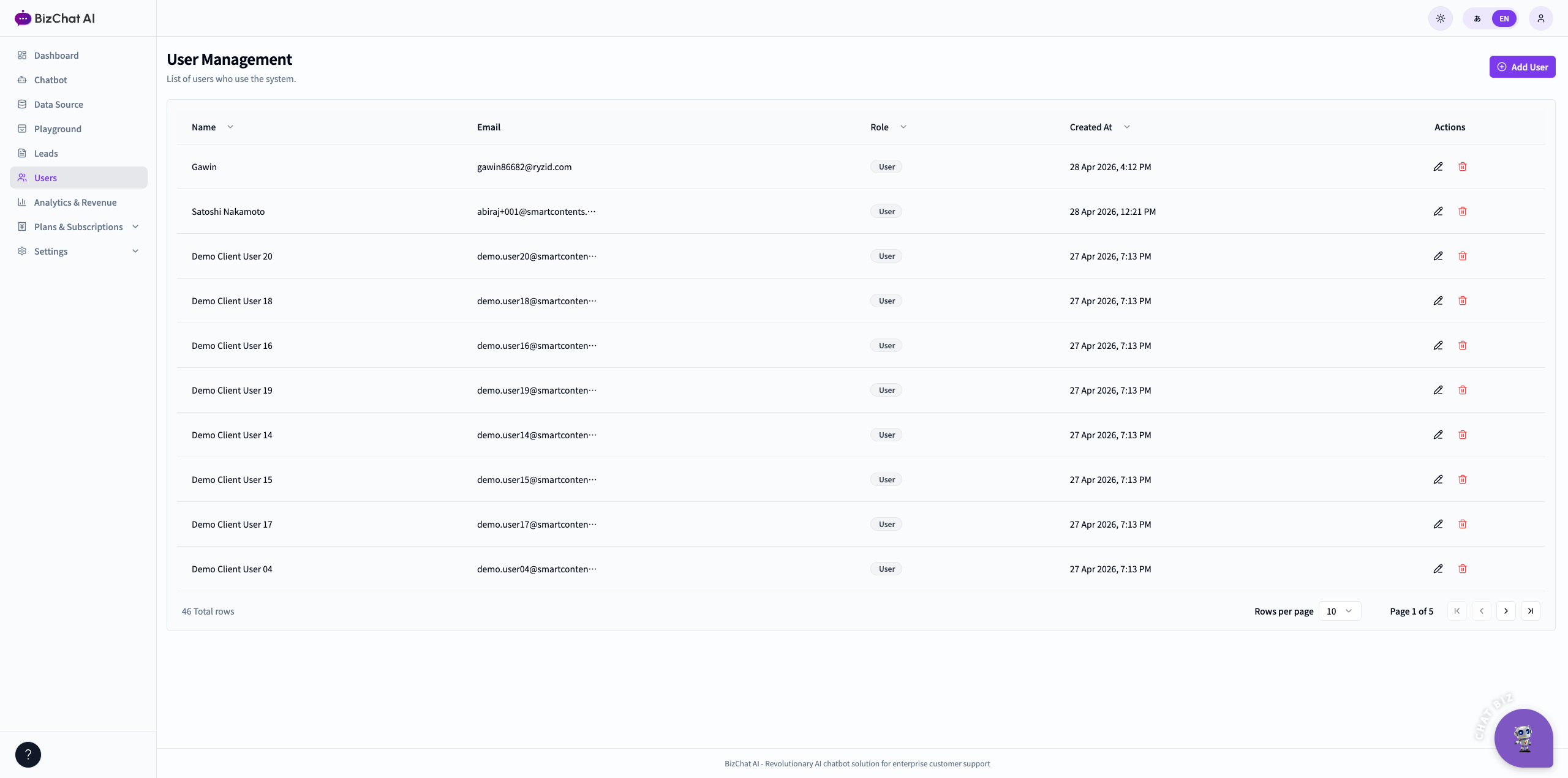
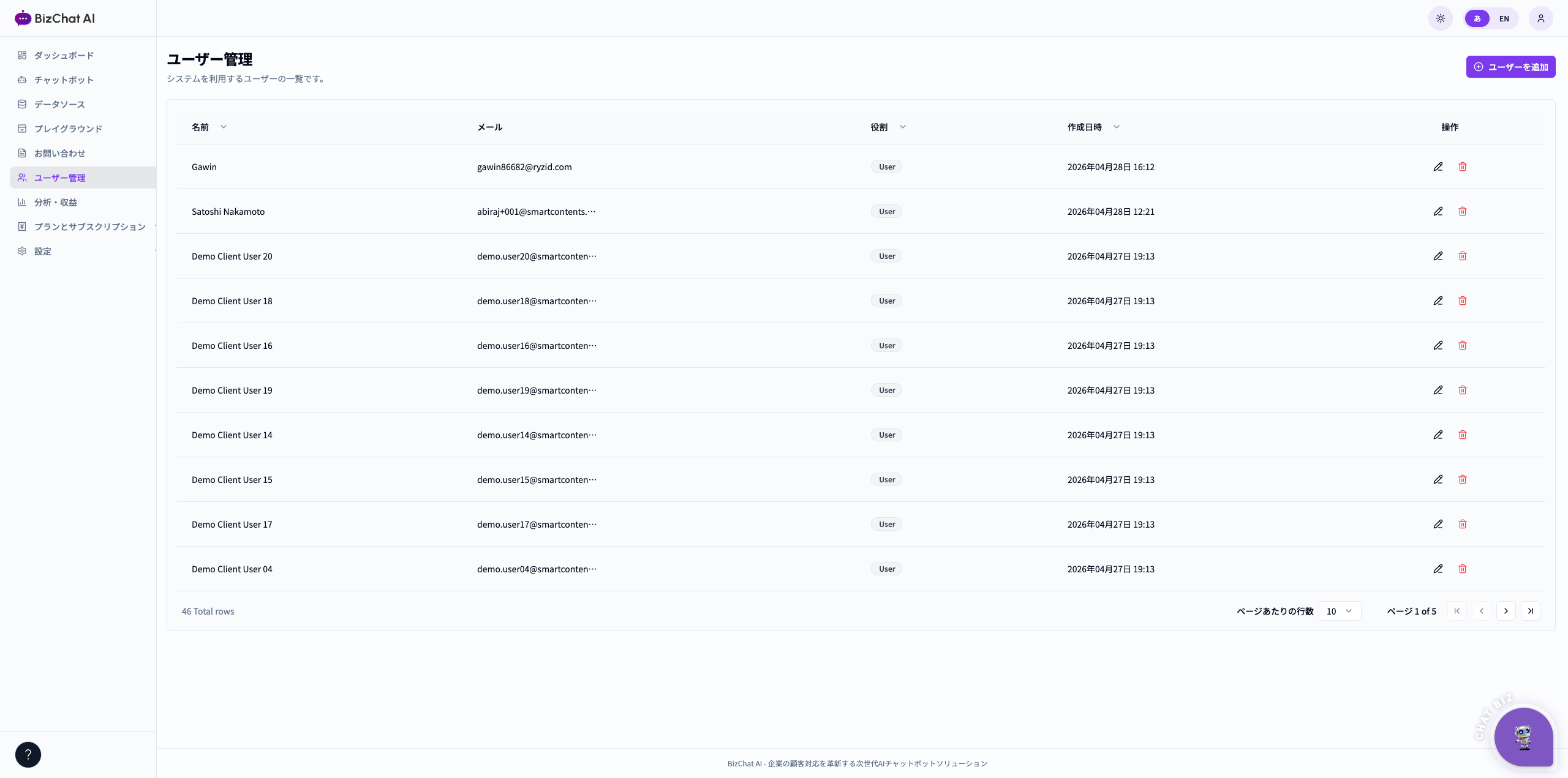
11Users & Rolesユーザーと権限
Invite team members and assign roles (Admin, Editor, Viewer). チームメンバーを招待し、権限(管理者・編集者・閲覧者)を割り当てます。
12Analytics & Revenue分析・収益
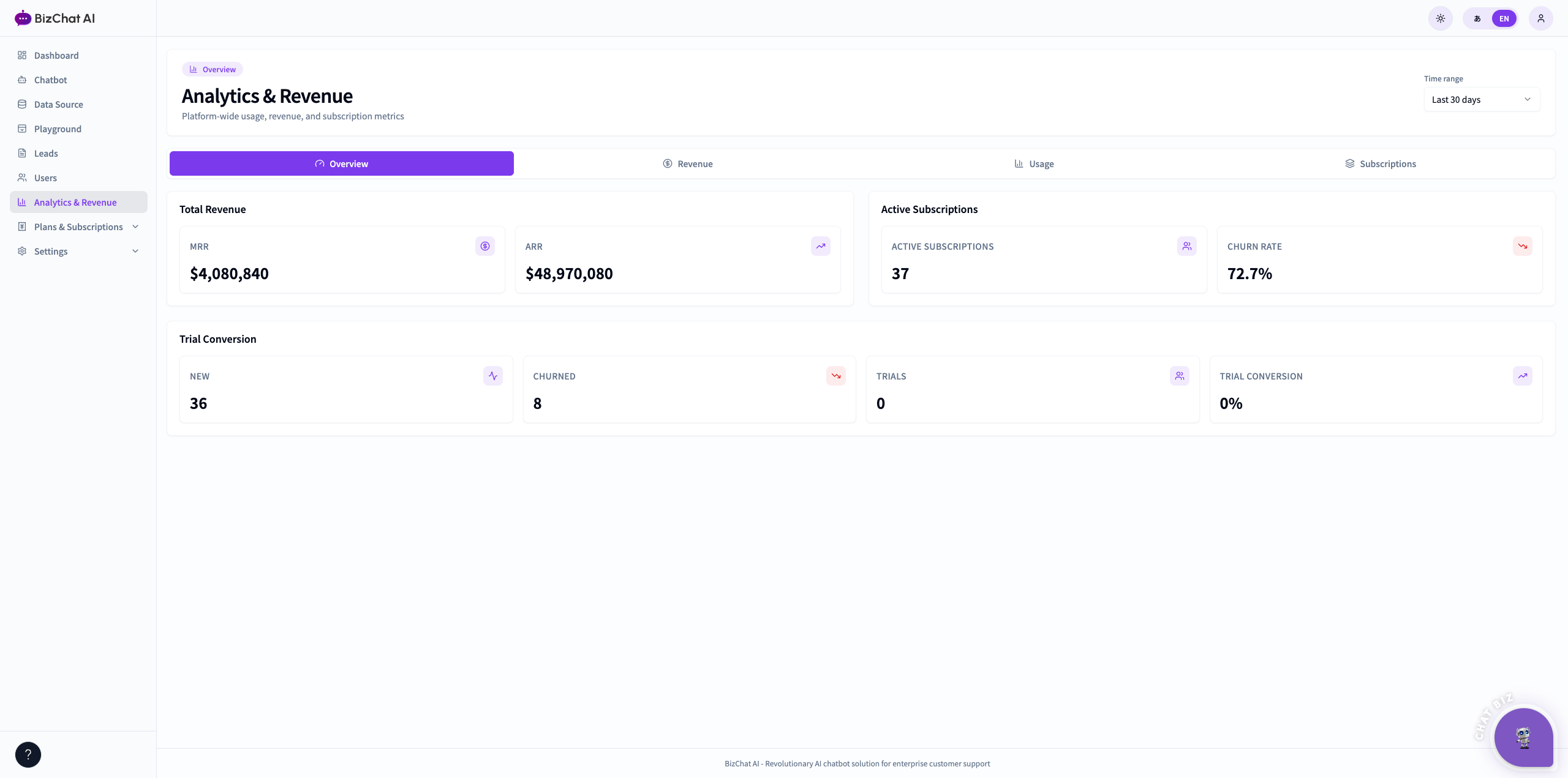
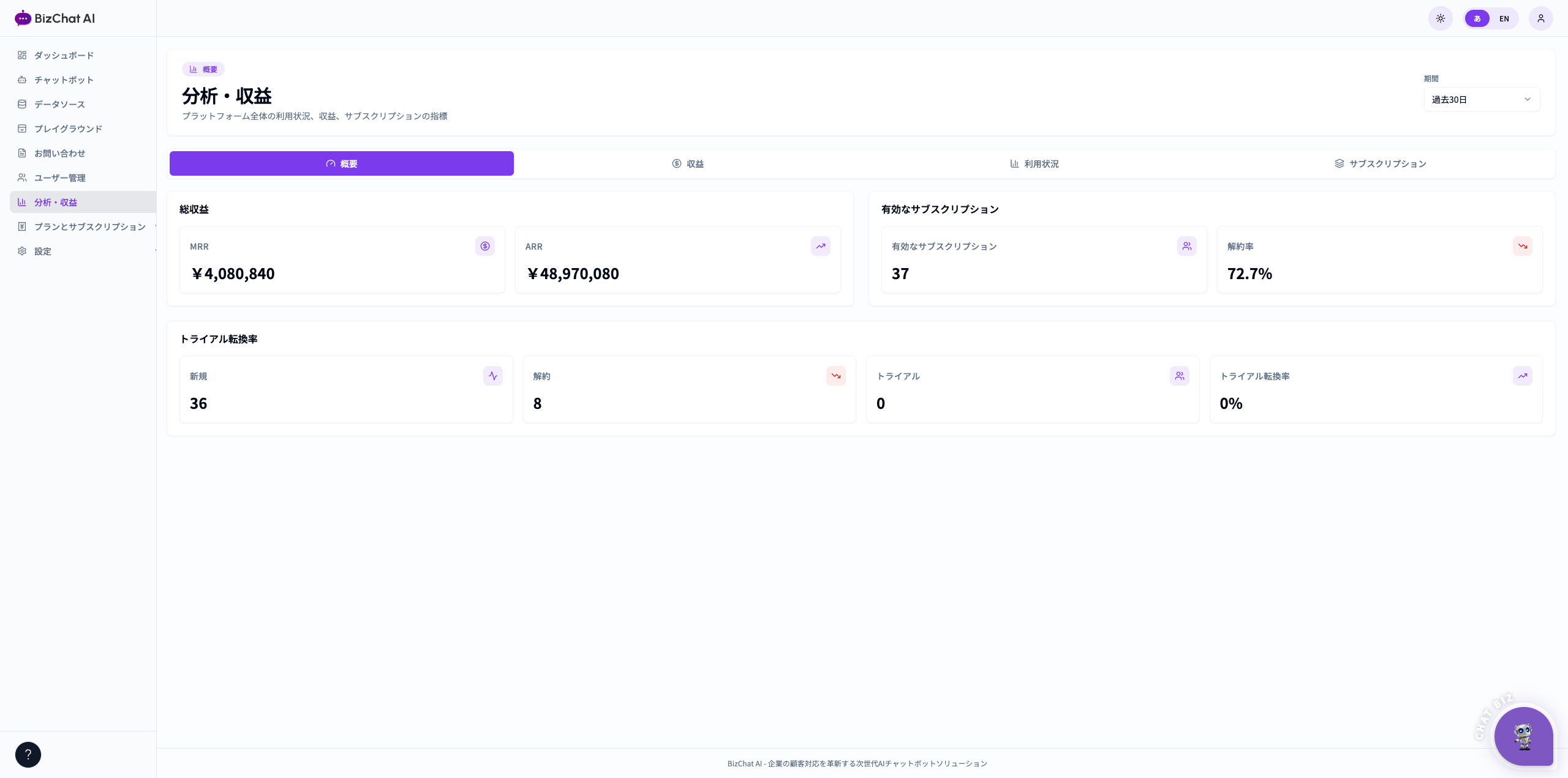
Track conversation volume, sentiment, top topics, and revenue. 会話量・感情分析・主要トピック・収益を確認できます。
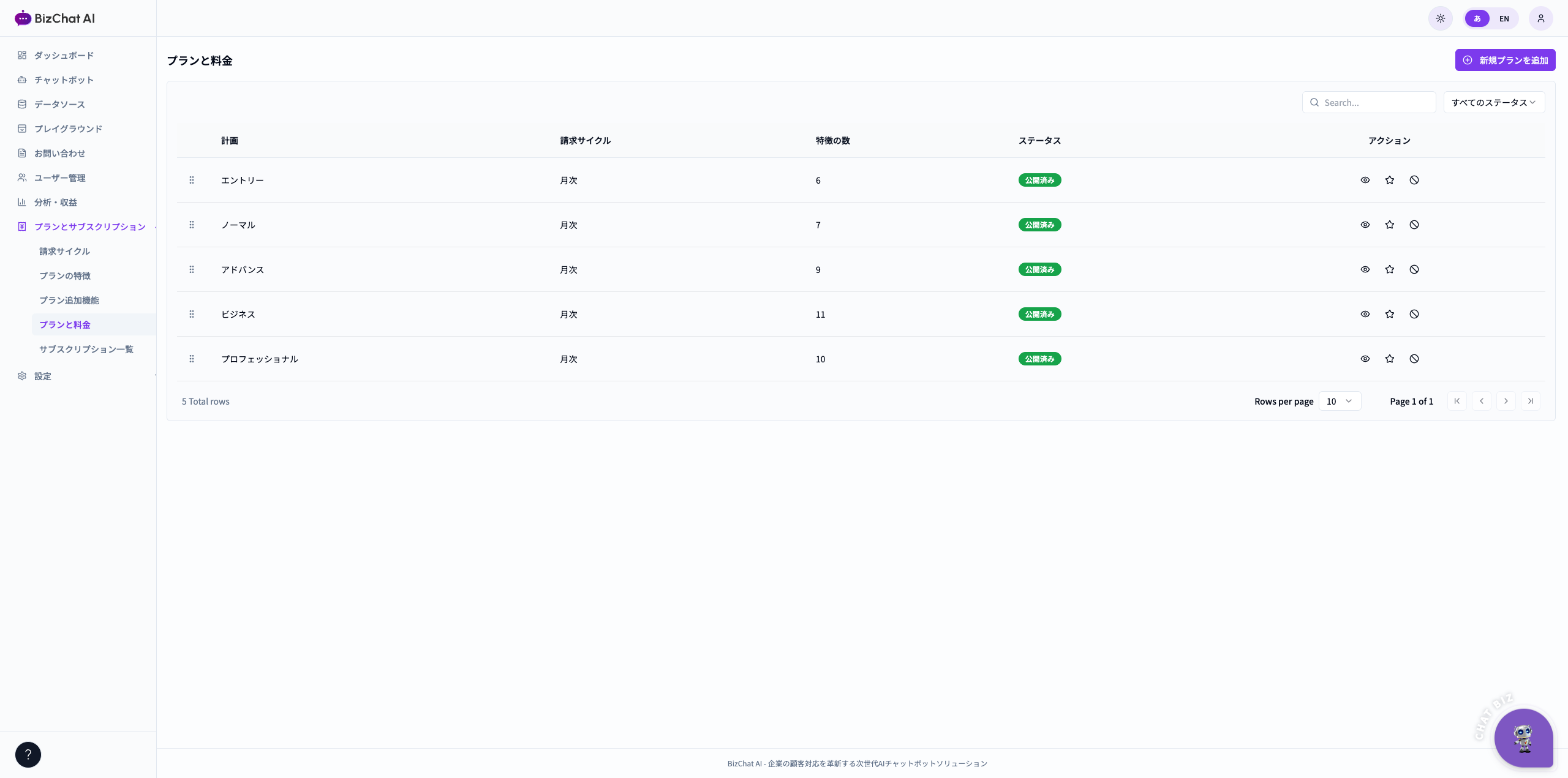
13Plans & Billingプランと請求
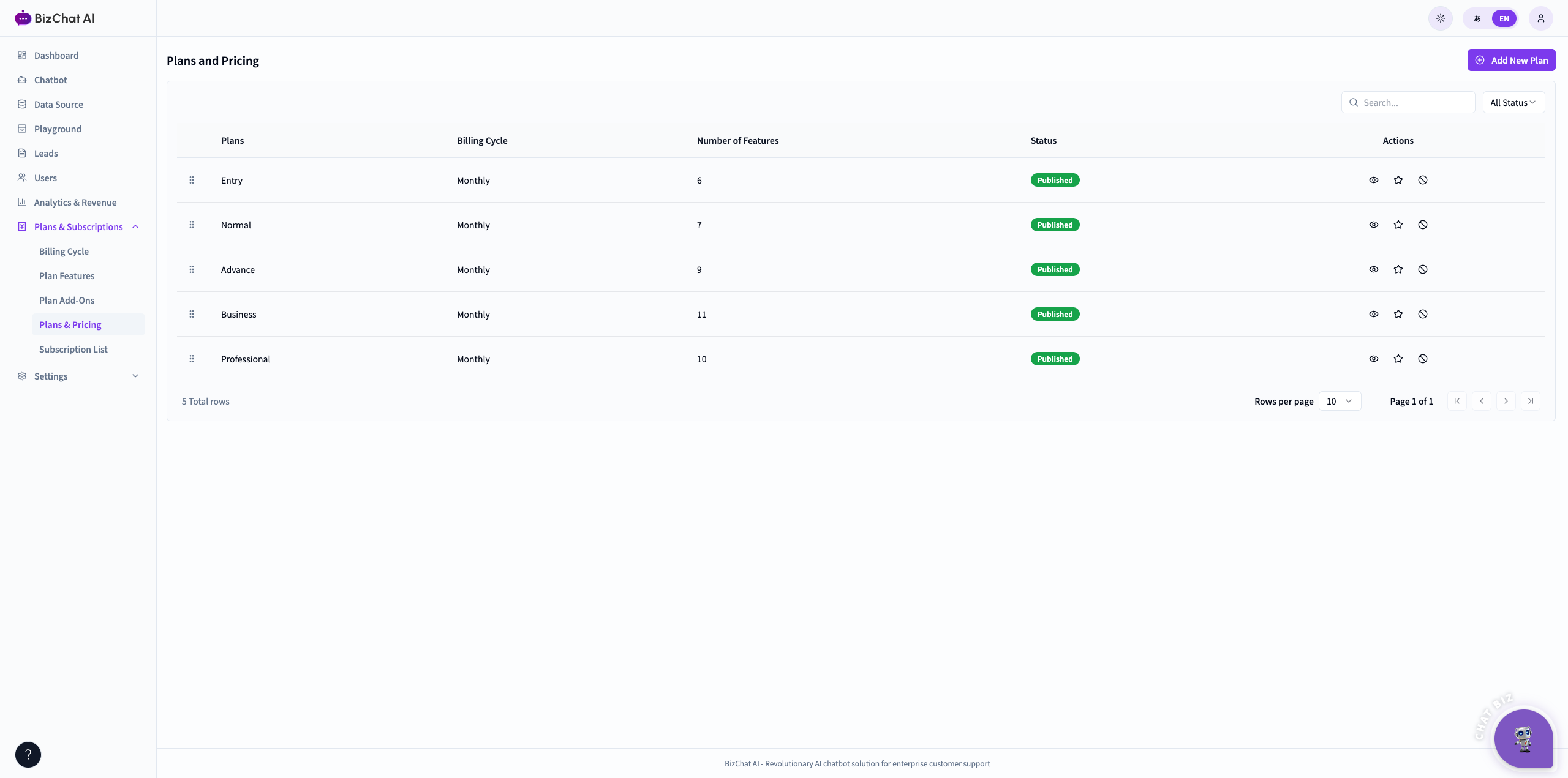
Compare plans, upgrade, and view your subscription history. プラン比較・アップグレード・契約履歴の確認ができます。
- Plans & Pricing / プラン一覧
- User Subscription / ご契約状況
- Billing Cycle / 請求サイクル
- Plan Add-ons / 追加機能
- Subscription History / 履歴
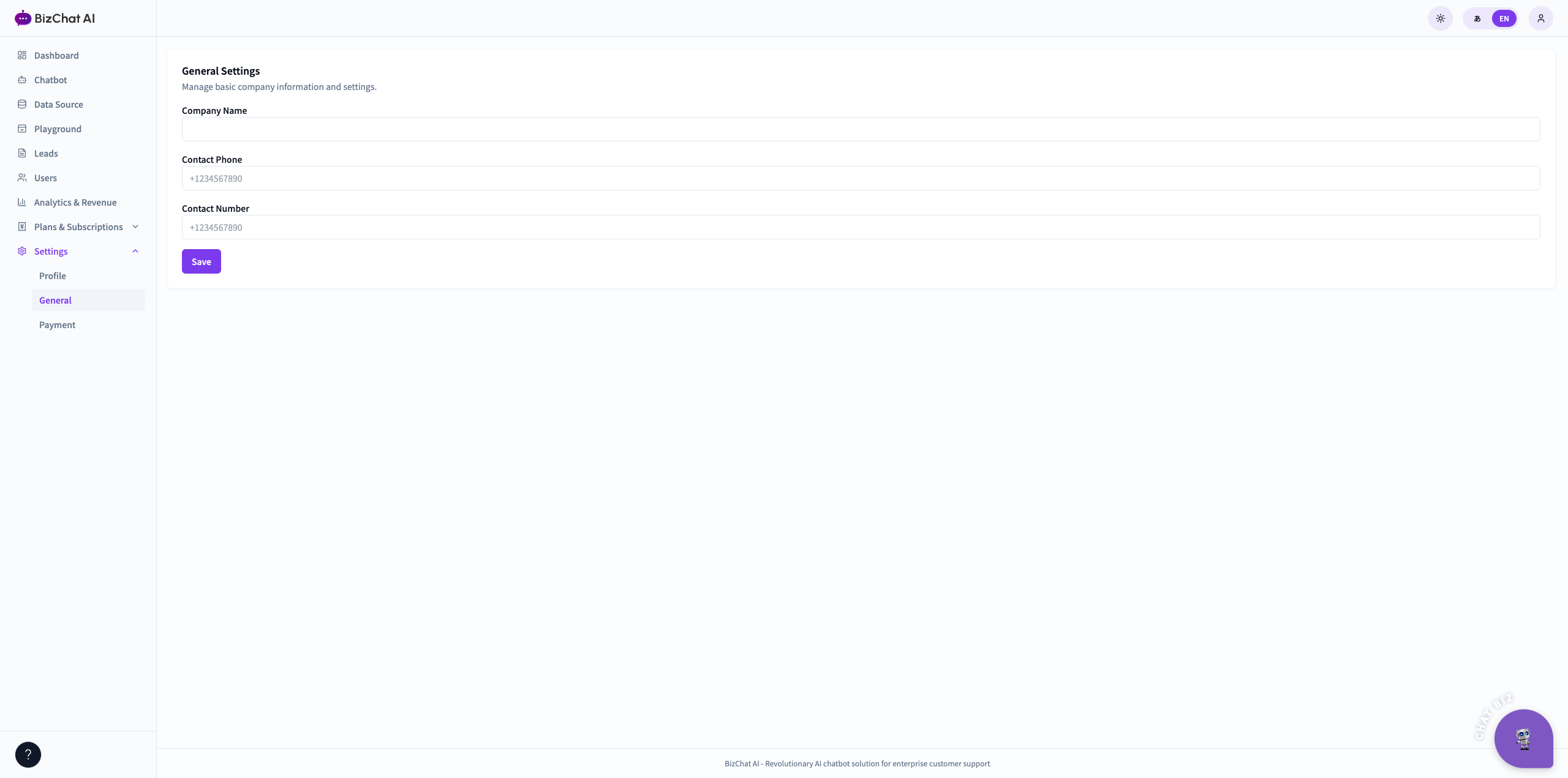
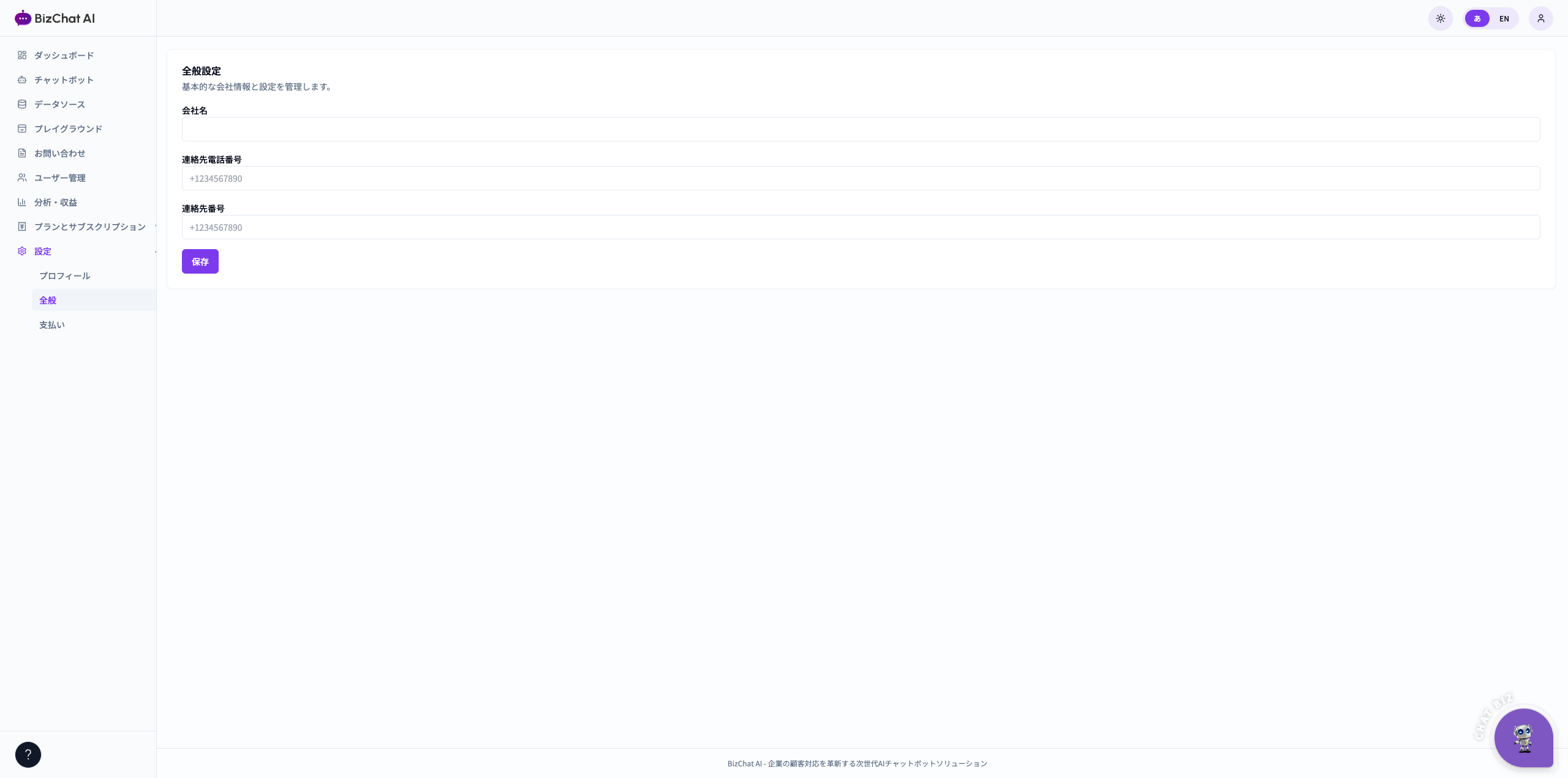
14General Settings一般設定
Workspace name, default language, time zone, branding. ワークスペース名・既定言語・タイムゾーン・ブランディング設定。
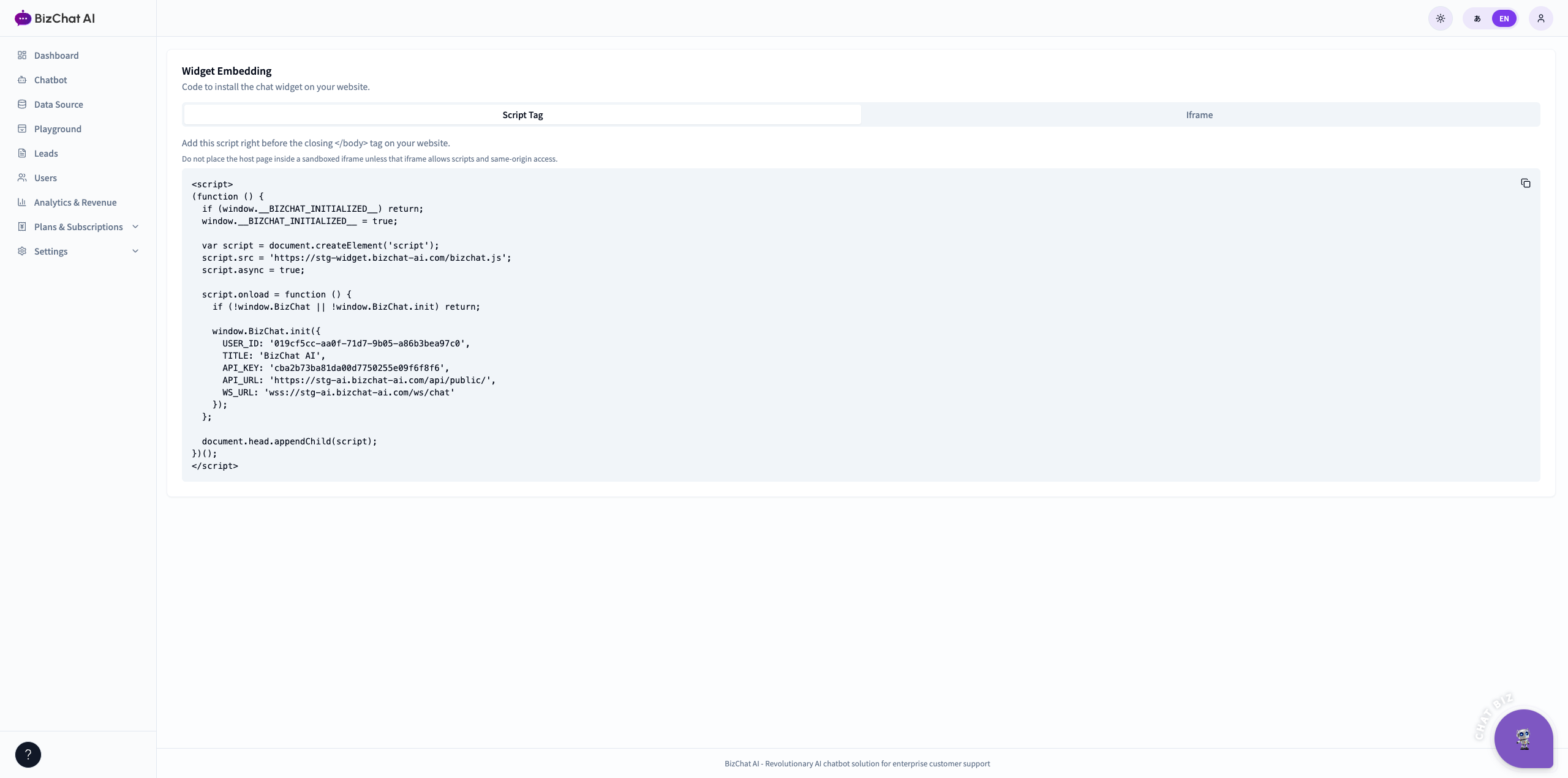
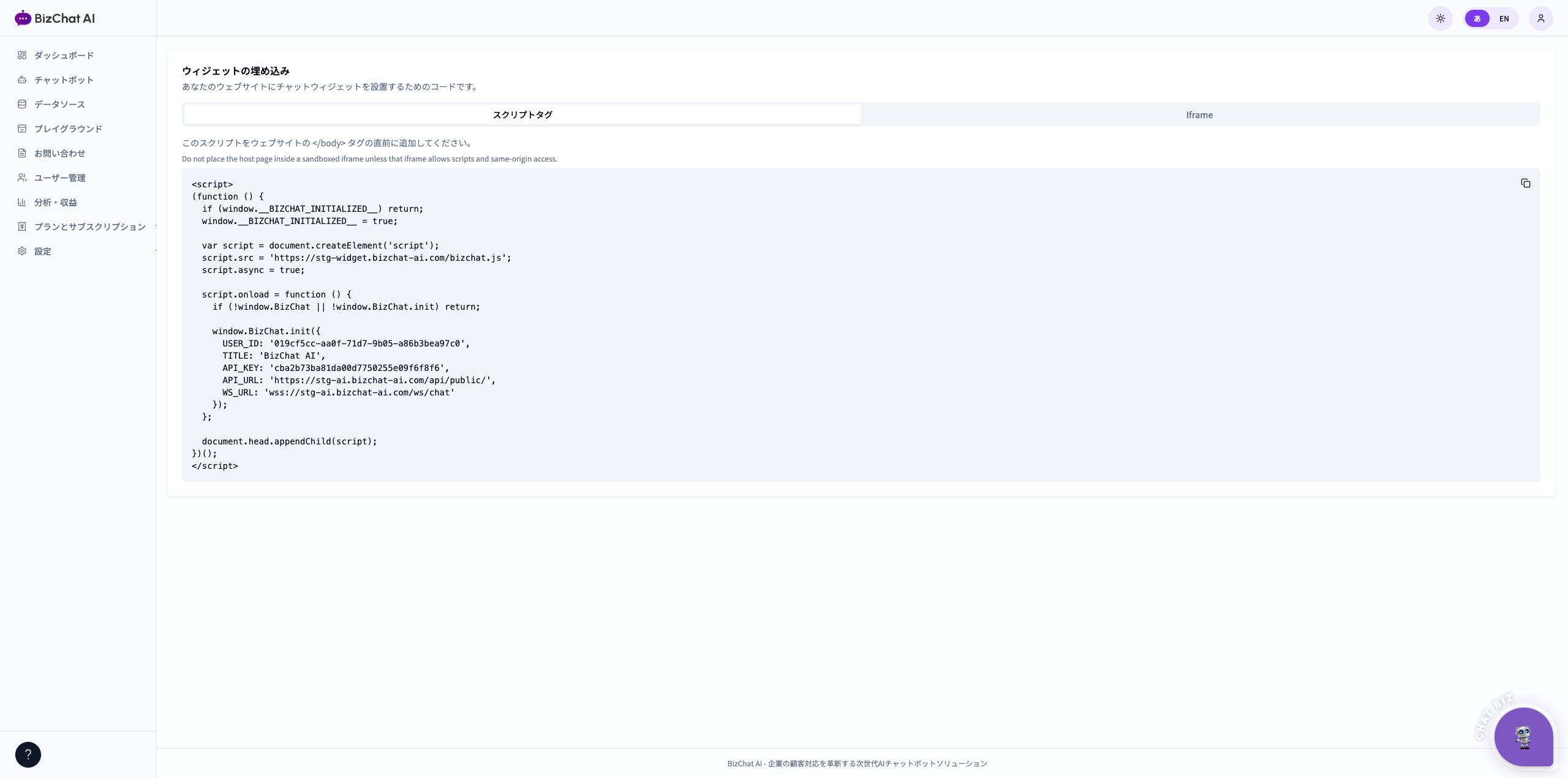
15Embed the Widget on Your Siteウィジェットをサイトに埋め込む
Copy a single script tag and paste it into your website's <head>.
提供されるスクリプトタグを 1 行コピーし、サイトの <head> に貼り付けます。
- Open Settings → Embedding. 設定 → 埋め込み を開きます。
- Pick the chatbot you want to publish. 公開するチャットボットを選択します。
- Customize colors, position, greeting message. 色・位置・挨拶メッセージをカスタマイズします。
- Copy the script and paste it into your site HTML. スクリプトをコピーし、サイトの HTML に貼り付けます。
<script src="https://cdn.bizchat-ai.com/widget.js"
  data-bot-id="YOUR_BOT_ID" defer></script>
16Profile & Securityプロフィールとセキュリティ
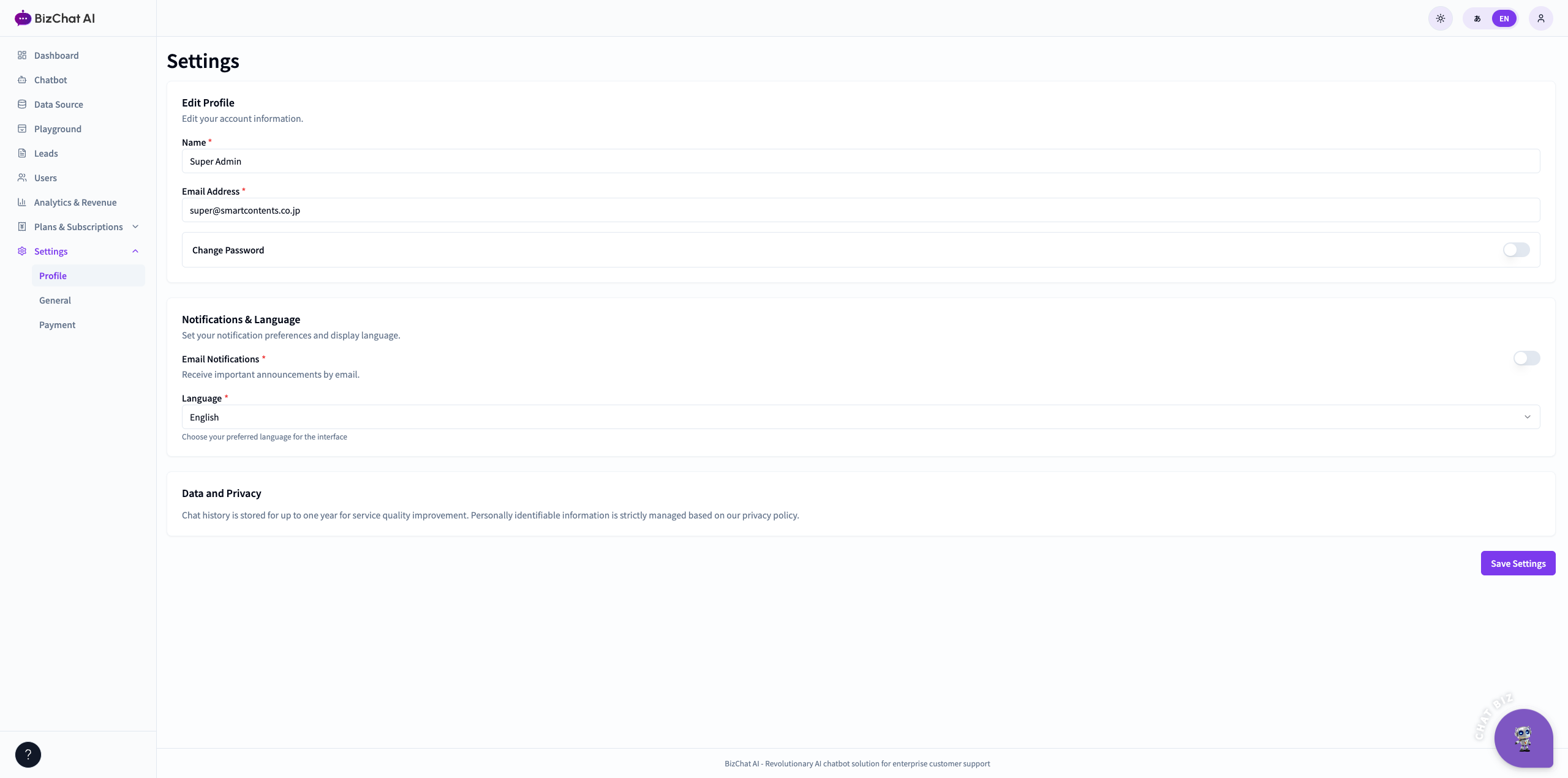
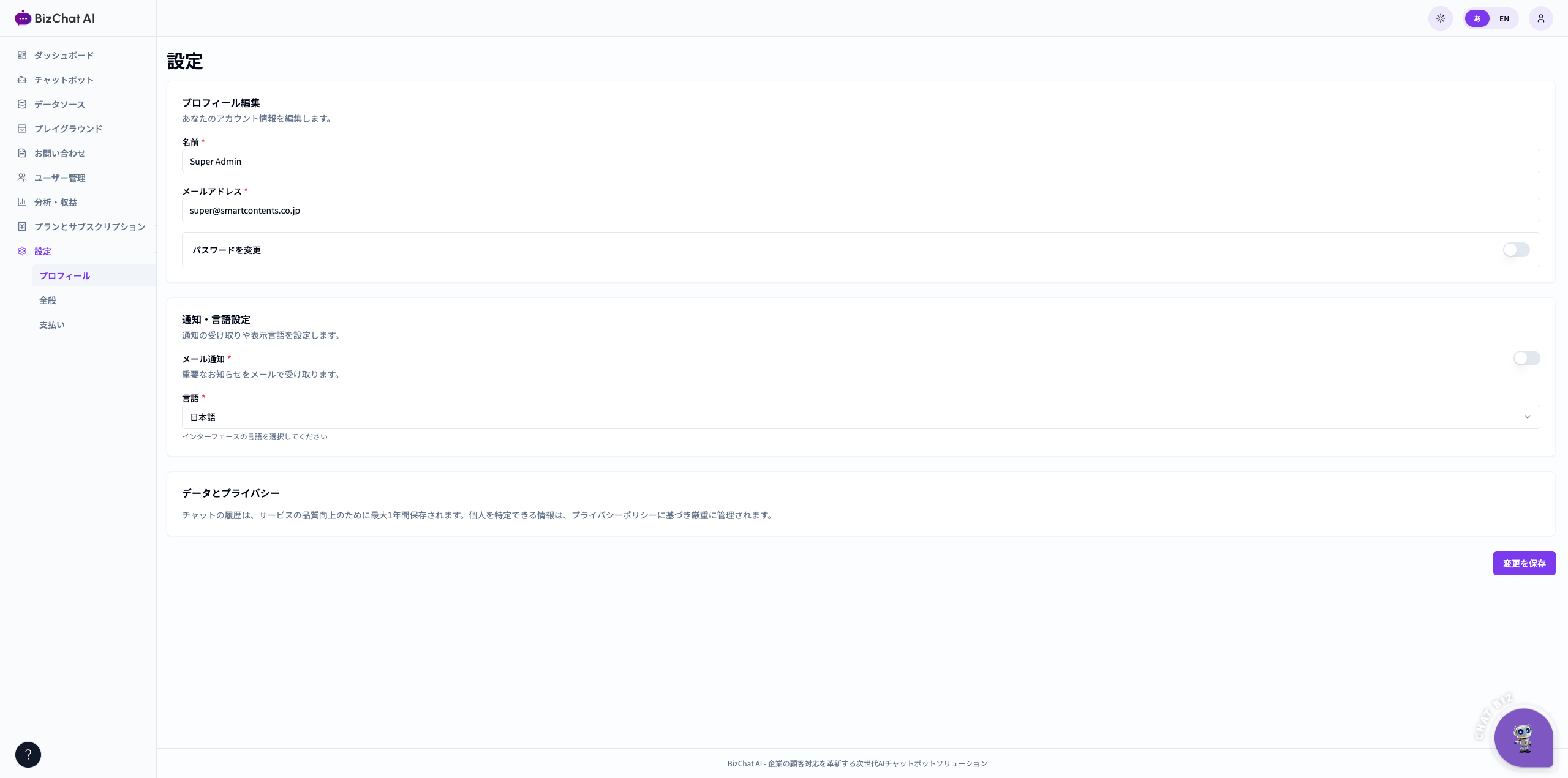
Update your name, avatar, language, password, and 2FA. 氏名・アイコン・言語・パスワード・2 段階認証を変更できます。
17Support & Next Stepsサポート・次のステップ
We're here to help your team succeed. 導入支援・運用サポートをご利用いただけます。
- In-app help: click the ? icon in the sidebar. 画面内ヘルプ:サイドバーの ? アイコンをクリック。
- Email:
support@bizchat-ai.comメール:support@bizchat-ai.com - Documentation portal & FAQ are linked from Help. ドキュメントと FAQ は ヘルプ からアクセスできます。